How to Use Intercom: Setup, Fin AI Agent & Best Practices

How to Use Intercom: Setup, Fin AI Agent & Best Practices
Intercom is an AI-first customer service platform that pairs a shared helpdesk with a natively integrated AI Agent called Fin. Getting value from it is less about flipping switches and more about sequence: connect your channels, invite your team, build a knowledge base worth trusting, then let Fin handle the repetitive questions while humans take the complex ones.
This guide walks through that sequence in the order that actually works, with the practical details beginners usually miss.
What Intercom Is (and What It Is Not)
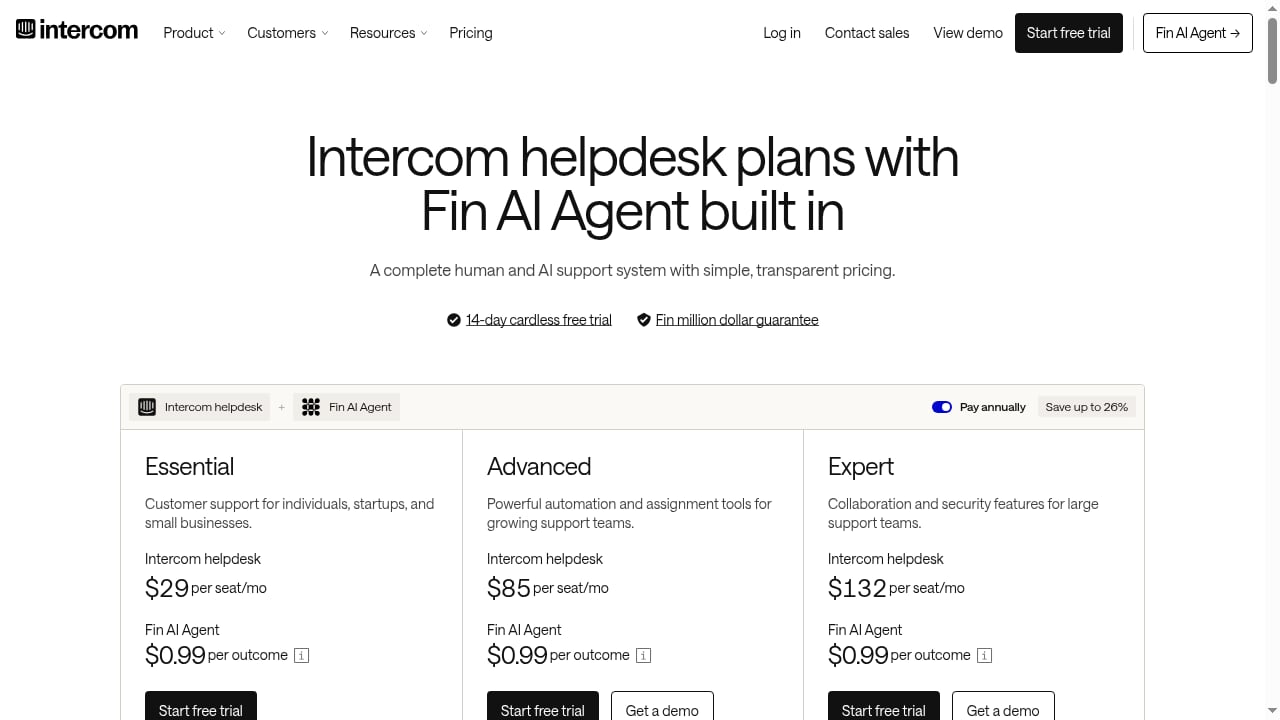
First viewport screenshot of Intercom Pricing | Plans for every team size.
Intercom combines three things that are often sold separately:
- A helpdesk where human agents handle conversations across channels in one inbox.
- Fin, an AI Agent that resolves customer questions using your support content and can hand off to a person when needed.
- AI insights and automation that surface trends and trigger proactive messaging.
It is not a set-and-forget chatbot. Fin's quality is a direct reflection of your knowledge base quality. Teams that treat content as an afterthought get mediocre AI answers; teams that invest in content early see automation rates climb quickly.
If you are still deciding whether Intercom fits your support model, the comparison in Intercom vs Genesys Cloud CX vs Front covers AI agents, pricing, and channel fit.
Step 1: Install the Messenger and Connect Your Channels
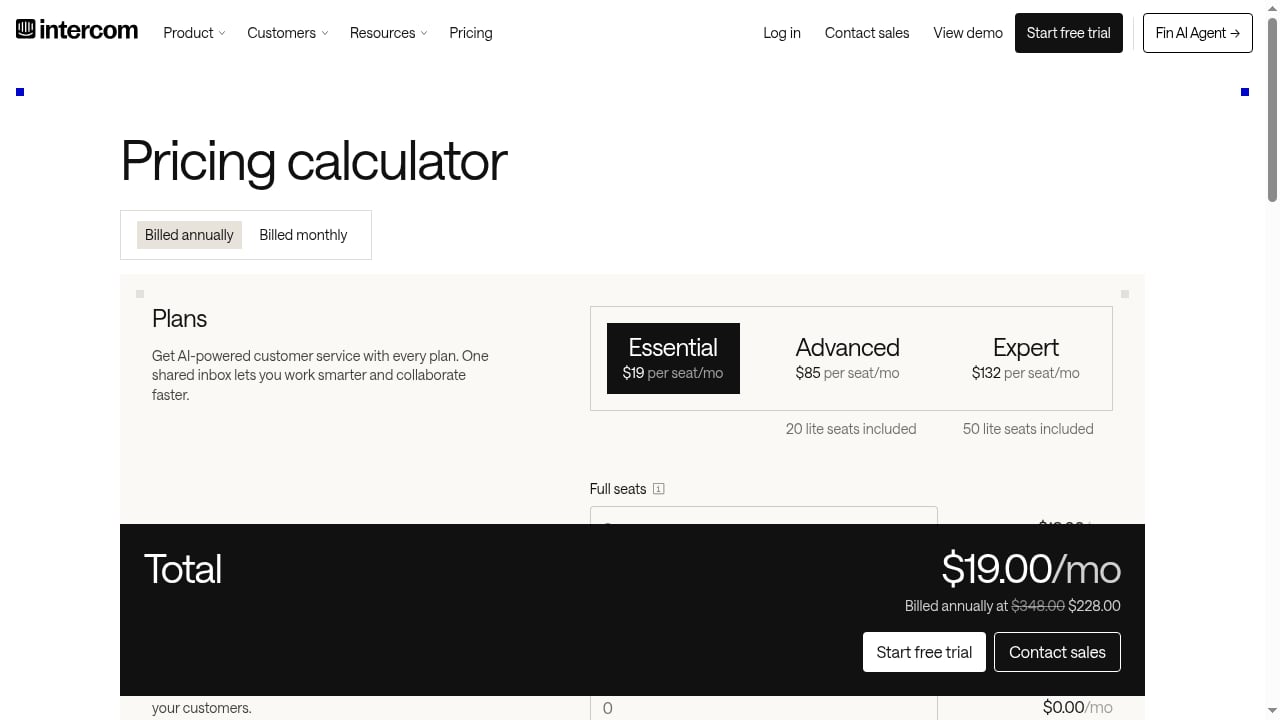
First viewport screenshot of Pricing Calculator | Intercom.
The Messenger is the foundation. Everything else — personalization data, Fin conversations, outbound messages — depends on it being live.
- Open the installation page and grab both code snippets: one for visitors, one for logged-in users. Install both. The logged-in snippet is what lets you identify known customers and personalize their experience.
- Customize the Messenger so it matches your brand — colors, logo, greeting, expected reply times, and how inbound conversations are routed.
- Verify your domain if you plan to send and receive email through Intercom. This lets replies come from your own address (for example, support@yourcompany.com) rather than a generic sender.
- Connect the other channels your customers actually use: phone, SMS, WhatsApp, Instagram, and Facebook. The point is a single inbox, not five tabs.
A common mistake is installing the Messenger in a staging environment and never shipping it to production. Get it live early, even with minimal customization, so you start collecting real conversation data.
Step 2: Invite Your Team and Set Permissions
Before conversations pile up, define who can see and do what.
- Create custom roles — reusable permission sets you can assign when inviting teammates. When someone changes roles later, you update one role instead of dozens of individual accounts.
- Invite teammates and assign the right role at invite time.
- Use lite seats where your plan allows, so people outside the core support team (sales, success, engineering) can collaborate without full agent access.
This step takes an hour and saves months of permission cleanup later.
Step 3: Build a Knowledge Base Worth Trusting
First viewport screenshot of Intercom Customers | See who trusts Intercom.
This is the step that determines whether Fin works. Intercom's own guidance is blunt: good content early is what enables high automation rates, gives agents an AI assistant in the inbox, and increases self-service through your Help Center.
Public content
- Create articles directly, or import and sync an existing knowledge base (for example, from Zendesk).
- Customize your Help Center so it looks like your brand, then publish it.
- Decide explicitly which articles Fin is allowed to use. Not every article should be AI-facing.
Internal content
- Use Intercom's knowledge tools for internal articles, or sync from tools like Confluence, Notion, or Guru.
- Enable internal content for Copilot so agents get an AI assistant inside the inbox.
Write for questions, not for features. A support article titled "How do I reset my password?" outperforms one titled "Account Security Overview" — both for customers and for Fin.
Step 4: Configure and Test Fin AI Agent
First viewport screenshot of Intercom | A complete system for human and AI customer service.
Once content exists, Fin can be previewed and tuned before customers ever see it.
- Enable content for Fin — select the articles and sources it should draw from.
- Preview Fin in the Messenger and ask the questions your customers actually ask. Watch where it hesitates.
- Test with a limited audience first. Use audience rules to roll Fin out to internal teammates or a small customer segment before a full launch.
- Review handoffs. When Fin escalates to a human, read the transcript. Repeated escalations on the same topic usually point to a missing or unclear article.
Fin is designed to resolve a large share of inbound queries instantly, which reduces wait times and frees agents for complex work. The exact resolution rate depends on your content coverage and query mix — treat any benchmark as a target to test against, not a guarantee.
For a broader look at how AI agents fit into support strategy, see B2B Support in 2026: Strategy, AI Agents & Best Practices.
Step 5: Connect Your Apps and Data (Optional but High-Leverage)
With the essentials running, bring in the rest of your stack.
- Install integrations from the App Store for the tools you already use — CRMs, ecommerce platforms, payment systems, and analytics.
- Define custom data — attributes and events that let you segment customers by who they are and what they do.
- Use that data for targeting — personalized greetings, audience rules, and proactive messages all depend on it.
Data quality here directly affects personalization. A clean set of five attributes beats a messy set of fifty.
Step 6: Send Proactive Outbound Messages
Support does not have to be purely reactive. Intercom supports outbound email, in-app chat, banners, surveys, and product tours.
- Start with one outbound email or in-app message targeted at a specific audience.
- Build reusable, on-brand email templates.
- Manage subscriptions with granular lists so you stay compliant and relevant.
Some message types (surveys, product tours, Series campaigns) may require add-ons depending on your plan. Email, chat, banners, and tooltips are typically available as standard.
Common Mistakes to Avoid
| Mistake | Why it hurts | Fix |
|---|---|---|
| Launching Fin before content exists | Weak or wrong answers erode customer trust | Build and review the knowledge base first |
| Installing only the visitor snippet | Logged-in customers stay anonymous | Install both Messenger snippets |
| Skipping domain verification | Replies come from a generic address, hurting deliverability | Verify your domain before sending email |
| No permission structure | Everyone has access to everything | Create custom roles before inviting the team |
| Never reviewing escalations | The same gaps repeat indefinitely | Read handoff transcripts weekly |
How to Measure Whether It Is Working
Track a small set of numbers rather than everything:
- AI resolution rate — share of conversations Fin closes without a human.
- Handoff rate and reasons — where and why Fin escalates.
- First response time — how fast customers get any answer.
- CSAT — whether speed is translating into satisfaction.
- Deflection to Help Center — how many customers self-serve before contacting you.
Review these monthly. If resolution rate stalls, the fix is almost always content, not configuration.
Related reading
- Salesforce Agentic CRM Review 2026: Agentforce Fit & Limits - Evidence-based Salesforce Agentic CRM review: Agentforce strengths, real-world limits, pricing signals, setup effort, and who should buy it in 2026.
Sources and further reading
- Getting started with Intercom - How to set up customer support with Intercom.
- Learning Center | Intercom - Explore guides, tips, and best practices to help you get the most out of Intercom and deliver better customer experiences.
- Intercom Tutorial for Beginners | How to Use Intercom (2025) - Intercom Tutorial for BeginnersIf you are looking for a video about How to Use Intercom, here it is! That's easy and simple to do!
FAQ
How long does it take to set up Intercom?
A basic setup — Messenger installed, channels connected, team invited — can be done in a day. A knowledge base good enough for Fin to perform well typically takes longer, often a few weeks of writing, importing, and refining based on real queries.
Do I need technical skills to use Intercom?
Installing the Messenger requires adding a code snippet to your site, which a developer or anyone comfortable with your CMS can handle. Day-to-day administration — content, permissions, outbound messages — does not require coding.
Can Fin AI Agent work without a knowledge base?
Fin relies on your support content to answer questions. Without it, answers will be unreliable. Building and curating content is the prerequisite, not an optional extra.
How do I test Fin before customers see it?
Use the Messenger preview to interact with Fin directly, then use audience rules to limit it to internal teammates or a small customer segment before rolling out more widely.
What channels can I connect?
Intercom supports email, chat, phone, SMS, WhatsApp, and social channels such as Instagram and Facebook, so conversations land in one inbox. Exact availability can vary by plan.
Is there a free trial?
Intercom offers a 14-day free trial with no credit card required, which is enough time to install the Messenger and test Fin against a starter knowledge base.
Conclusion
Using Intercom well comes down to order of operations: get the Messenger live, structure your team's permissions, invest in a knowledge base, then let Fin handle volume while humans handle complexity. The platform rewards teams that treat content as infrastructure. Start with the Messenger and one channel, publish ten genuinely useful articles, and test Fin against them — that small loop will teach you more than any full-scale rollout done blindly.
If you are evaluating alternatives or migrating from another platform, comparisons like Intercom vs Dashly vs HappyFox and Deskpro Competitors: 10 Best Alternatives for 2026 can help you weigh AI capability, pricing, and deployment before committing.