Zoom Meeting: How to Join, Host, and Get More Done

Zoom Meeting: How to Join, Host, and Get More Done
A Zoom meeting is a live video call hosted on Zoom's platform, where people connect through a shared link or meeting ID to talk, share screens, and collaborate in real time. Whether you are joining your first call or running daily standups for a distributed team, the basics are simple — but a few habits separate a smooth meeting from a frustrating one.
This guide covers how to join a Zoom meeting, what hosts should set up in advance, which built-in features matter most, and how meeting follow-up connects to the rest of your customer and team workflows.
What Is a Zoom Meeting?
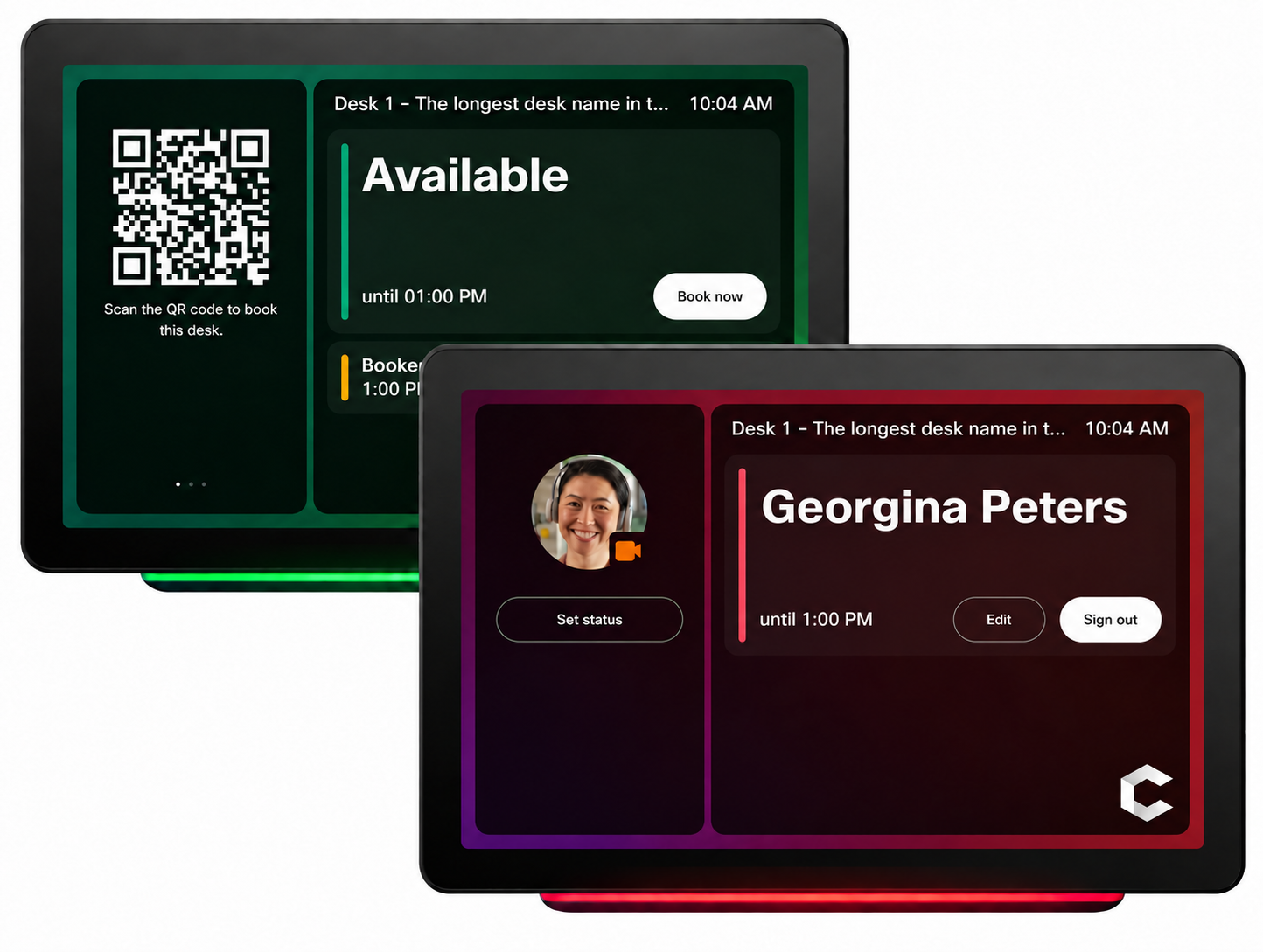
Zoom Meeting: How to Join, Host, and Get More Done - What Is a Zoom Meeting?.
A Zoom meeting is a scheduled or instant video session hosted by an individual or organization. Participants join from a desktop app, mobile app, browser, or a conference room system. Each meeting is identified by a meeting ID and, usually, a join link.
Key characteristics:
- Live, interactive sessions. Everyone can speak, appear on camera, share screens, and use chat.
- Host controls. The host manages waiting rooms, muting, recording permissions, and breakout rooms.
- Cross-device access. The same meeting works on desktop, mobile, and room hardware.
- AI assistance. Zoom includes AI features such as meeting summaries at no additional cost on many plans, according to Zoom's meetings product page.
A Zoom meeting differs from a Zoom webinar: meetings are built for two-way conversation, while webinars are designed for one-to-many broadcasts with limited attendee interaction.
How to Join a Zoom Meeting
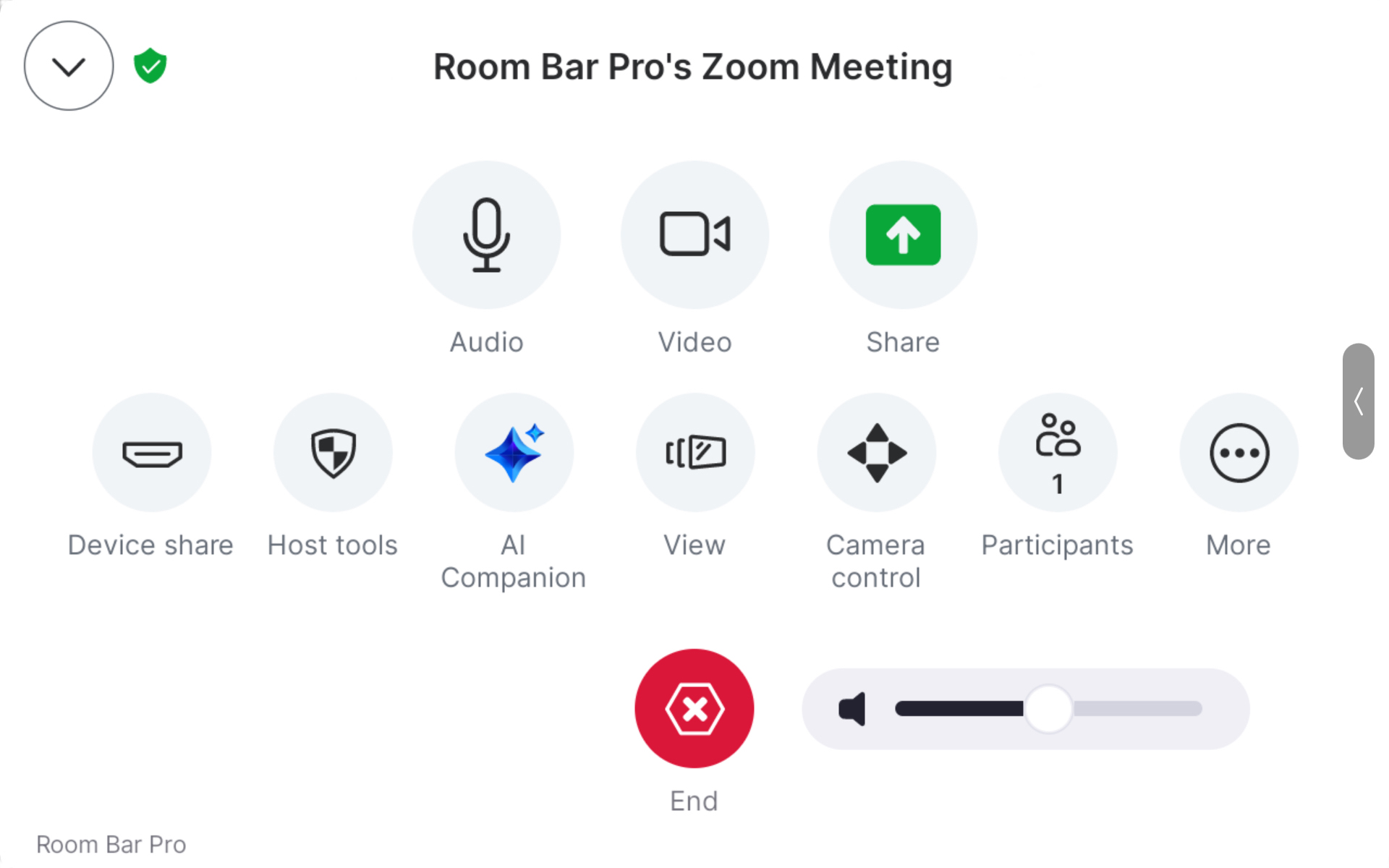
Zoom Meeting: How to Join, Host, and Get More Done - How to Join a Zoom Meeting.
Joining is the most common task, and it takes under a minute once you know the path.
Join from a link
- Open the invite email, calendar event, or chat message.
- Click the join link. If the meeting has not started, you may see a waiting screen.
- Allow camera and microphone access when your browser or app asks.
- Choose Join with Computer Audio or dial in by phone.
Join with a meeting ID
If you only have a numeric ID, open the Zoom app, select Join, and enter the ID plus any passcode. The web join page at app.zoom.us/wc/join works the same way in a browser.
Join from a browser without installing anything
You can attend through the web client rather than downloading the desktop app. Zoom's web client page at app.zoom.us/wc also points to the desktop download if you want chat, phone, and docs in one place.
Common join problems
| Symptom | Likely cause | Fix |
|---|---|---|
| "Waiting for the host" | Host has not started the meeting | Wait or contact the host |
| No audio | Wrong audio device selected | Use Audio Settings to switch mic/speaker |
| Cannot enter | Passcode or authentication required | Check the invite for the passcode |
| Link does nothing | Expired or reused meeting ID | Request a fresh link |
How to Host a Zoom Meeting
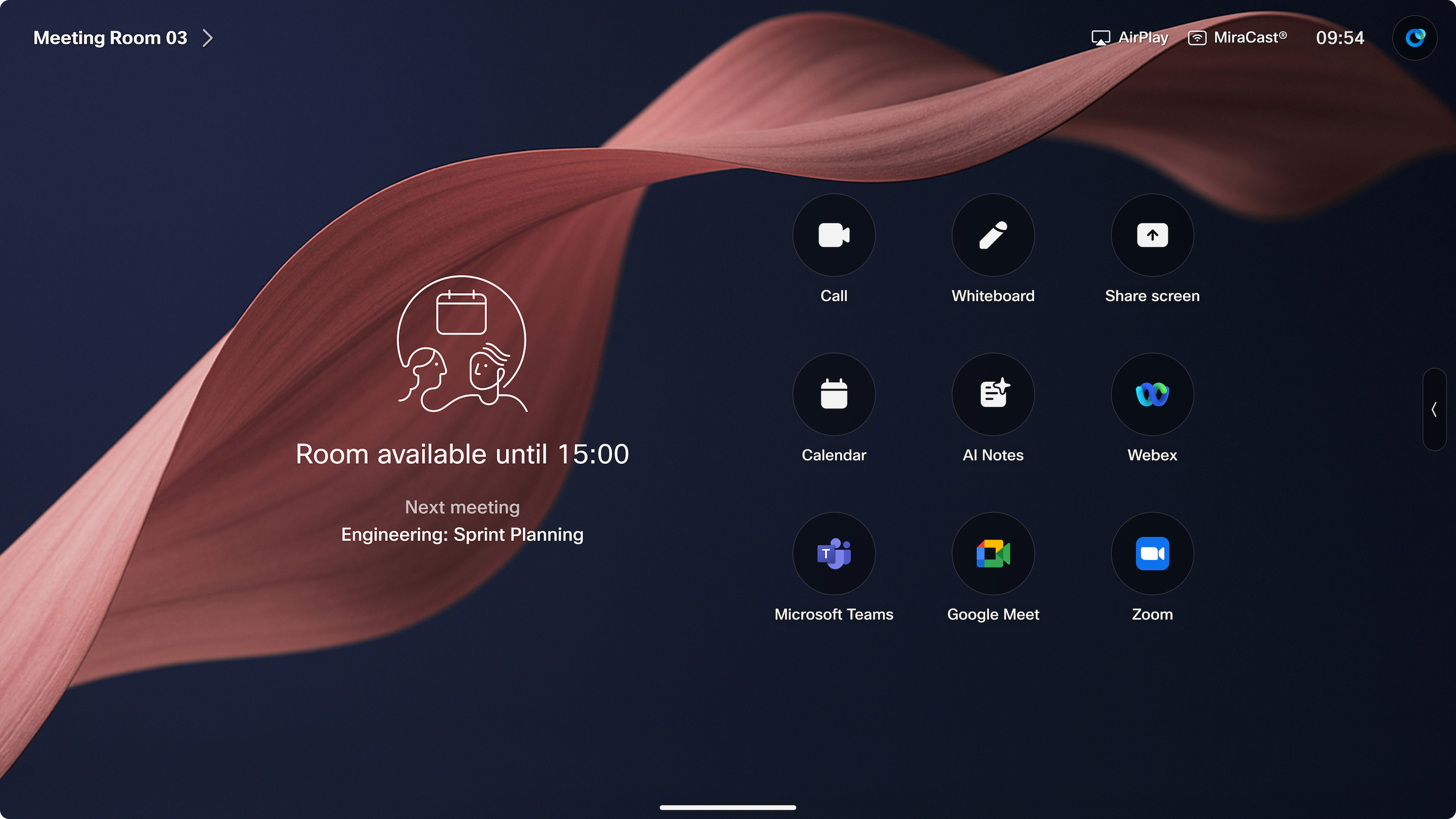
Zoom Meeting: How to Join, Host, and Get More Done - How to Host a Zoom Meeting.
Hosting well is mostly preparation. Before the call:
- Schedule with a clear agenda. Put the purpose, time zone, and pre-reads in the invite.
- Set a passcode and waiting room. This is the simplest protection against unwanted joiners.
- Assign a co-host. Useful for large calls where someone needs to manage chat and participants.
- Test audio and video. Join early from the same device you will present from.
- Decide on recording. Tell participants in advance if the session will be recorded.
During the call, hosts can mute all participants, share screens, launch polls, annotate shared content, and move people into breakout rooms. After the call, recordings, transcripts, and AI summaries can be shared so people who missed it stay current.
Zoom Meeting Features That Actually Matter

Zoom Meeting: How to Join, Host, and Get More Done - Zoom Meeting Features That Actually Matter.
Not every feature earns its place in your workflow. These tend to have the highest impact:
AI meeting summaries
Automatic summaries and next-step extraction cut down on note-taking and make follow-up faster. This is now a baseline expectation for video tools, not a premium add-on.
Screen sharing and annotation
Essential for demos, design reviews, and troubleshooting. Annotation lets participants mark up the shared screen directly.
Breakout rooms
Useful for workshops, interviews, and small-group discussion inside a larger session.
Chat and live messaging
Lets people ask questions without interrupting the speaker, and gives hosts a back channel for coordination.
Recording and transcripts
Valuable for training, compliance, and async teammates in different time zones.
Zoom Meeting Best Practices for Teams
Small habits compound across dozens of calls a week:
- Start on time and state the goal. A one-sentence objective keeps calls from drifting.
- Default to cameras optional. Forcing video adds fatigue without always adding value.
- Cap default meetings at 25 or 50 minutes. Back-to-back hours erode attention.
- Send an agenda with the invite. Attendees arrive prepared instead of catching up live.
- End with owners and dates. Decisions without owners rarely ship.
- Share the summary within a day. Momentum fades fast after a call ends.
Where Meetings Fit in Your Wider Workflow
Zoom meetings handle the live conversation. The harder problem is what happens around it — the questions customers ask before a call, the follow-ups after, and the support requests that never needed a meeting at all.
For customer-facing teams, that surrounding work often lives in a helpdesk. An AI-first platform such as Intercom pairs a shared inbox with an AI Agent, Fin, that resolves common questions instantly across live chat, email, in-app messaging, and phone — so routine issues are handled without pulling anyone into a call. If you are evaluating that layer of your stack, our buyer's guide to support automation platforms breaks down the criteria that matter, and the Intercom vs Deskpro comparison shows how AI agents and ticketing differ in practice.
The practical split looks like this:
- Use a meeting for discovery, demos, escalations, and anything requiring nuance or negotiation.
- Use async messaging or a helpdesk for status updates, how-to questions, and repeatable requests.
- Use AI self-service for the long tail of questions your team answers the same way every week.
Teams that draw this line clearly tend to see fewer unnecessary calls and better-prepared ones.
Zoom Meeting vs Webinar vs Async Video
| Format | Best for | Interaction level |
|---|---|---|
| Zoom meeting | Team syncs, demos, 1:1s | High — everyone can speak |
| Zoom webinar | Launches, training at scale | Low — panel speaks, attendees watch |
| Recorded/async video | Updates across time zones | None — consumed on demand |
| Chat or helpdesk thread | Quick questions, follow-ups | Medium — text-based |
If your goal is discussion, pick a meeting. If your goal is reach, pick a webinar. If your goal is speed, pick text.
Related reading
- Intercom vs Featurebase vs ProProfs Help Desk (2026) - Compare Intercom, Featurebase, and ProProfs Help Desk on AI agents, pricing, channels, and use cases to pick the right support platform in 2026.
- Intercom vs DevRev: Which AI Support Platform Wins in 2026? - Compare Intercom and DevRev on AI agents, ticketing, pricing, and use cases. See which customer service platform fits your team in 2026.
- Botpress Review 2026: AI Agent Platform Tested - Hands-on Botpress review: visual AI agent builder, knowledge bases, channels, pricing signals, setup effort, limitations, and who should buy it in 2026.
Frequently Asked Questions
Do I need to install Zoom to join a meeting?
No. You can join through the web client in a browser. Installing the desktop or mobile app gives you a fuller feature set, including chat and phone.
Can I join a Zoom meeting without an account?
Yes, in most cases. If the host has enabled authentication or registration requirements, you will need to sign in or register first.
How do I get my Zoom meeting link?
After scheduling, Zoom generates a join link and meeting ID. Copy them from the meeting details or the calendar invite.
Are Zoom AI summaries free?
Zoom states that AI features are included at no additional cost on many plans. Availability varies by plan and administrator settings, so confirm with your account owner.
What is the difference between a Zoom meeting and a webinar?
Meetings allow all participants to interact on camera and audio. Webinars are broadcast-style, with attendees typically in listen-only mode unless the host promotes them.
How many people can join a Zoom meeting?
Capacity depends on your plan and license type. Free and basic plans have lower participant limits than large business or enterprise tiers.
Conclusion
A Zoom meeting is easy to join and easy to run badly. The difference comes down to preparation: a clear agenda, sensible defaults, and a follow-up habit that turns conversation into action. Get those right, and the platform itself fades into the background where it belongs.
Just as important is knowing when not to meet. Routing routine questions to async channels and AI-powered self-service keeps your calendar — and your customers — healthier.