ClearFeed Download Guide: Setup, Pricing, and AI Support Fit
ClearFeed Download Guide: Setup, Pricing, and AI Support Fit
ClearFeed is a Slack-native support platform that turns conversations in Slack and Microsoft Teams into trackable requests. If you are searching for a ClearFeed download, you are likely trying to install the app, connect it to your workspace, or decide whether it deserves a place in your support stack. This guide covers every download path, what each one actually installs, how pricing works, and where a broader AI-first helpdesk like Intercom makes more sense.
What "ClearFeed download" actually means
There is no single desktop installer called ClearFeed. The product is delivered as apps inside the tools your team already uses:
- Slack app — installed from the Slack Marketplace or from ClearFeed's own site. This is the primary way most teams start.
- Microsoft Teams app package — downloaded as a
.zipfile from the ClearFeed dashboard during the Teams integration flow, then uploaded manually in Teams. - Web dashboard — no download at all; you sign in at clearfeed.ai to configure collections, workflows, and integrations.
So when someone asks how to download ClearFeed, the honest answer is: you install an app into Slack or Teams, and you configure everything else in the browser.
How to download and install ClearFeed in Slack
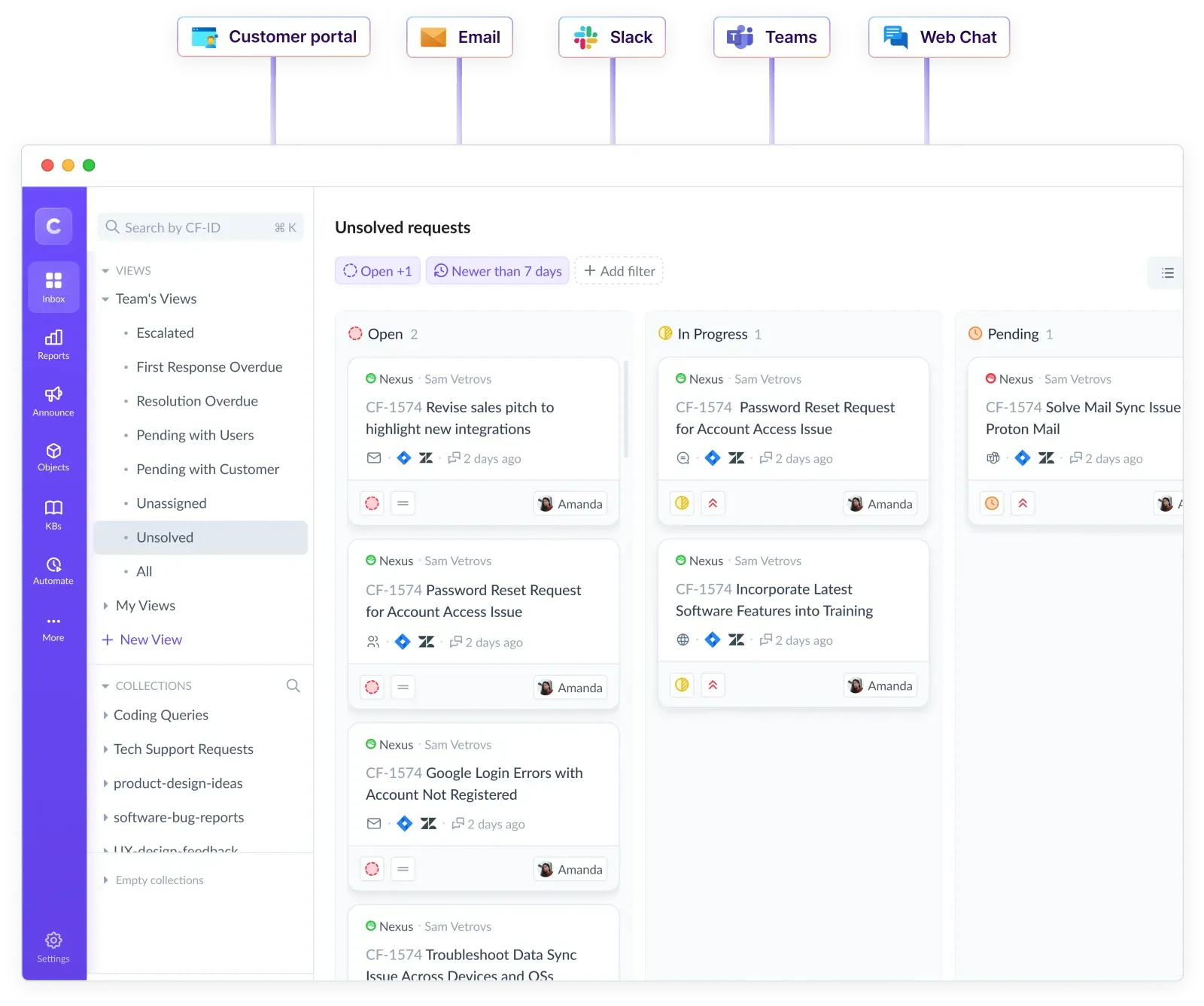
ClearFeed Download Guide: Setup, Pricing, and AI Support Fit - How to download and install ClearFeed in Slack.
This is the fastest path and the one ClearFeed optimizes for.
- Open the Slack Marketplace listing or the ClearFeed website and click the install button.
- Choose the Slack workspace you want to connect.
- Review the permissions ClearFeed requests — it needs to read messages in channels you add it to, and post responses.
- Authorize the installation. The app appears in your Slack sidebar.
- In the ClearFeed web dashboard, create a Collection and select which Slack channels should route into your triage channel.
From that point, messages in monitored channels can be converted into requests, assigned to owners, and tracked with statuses and SLAs — all without leaving Slack.
What to check after install
- Confirm the triage channel is receiving messages from every source channel you selected.
- Decide whether requests should become tickets automatically, by tagging the bot, or by reacting with the 🎫 emoji.
- Set up at least one workflow so unanswered requests trigger a reminder instead of silently aging.
How to download and install ClearFeed for Microsoft Teams

ClearFeed Download Guide: Setup, Pricing, and AI Support Fit - How to download and install ClearFeed for Microsoft Teams.
Teams is a two-part setup, which is why it confuses people. ClearFeed monitors channels in your Teams workspace and mirrors them into Slack — it does not sit inside your customer's tenant.
- In the ClearFeed dashboard, open the Teams integration and click Connect.
- Sign in with Microsoft credentials and complete the OAuth authorization. An Azure organization admin usually needs to approve this, not just a Teams admin.
- Download the ClearFeed Teams app package from the link shown in the dashboard.
- In Microsoft Teams, go to Apps → Manage your apps → Upload an app and upload the package.
- Add ClearFeed to the Team, and — for shared channels — add it inside each individual shared channel as well.
- Back in ClearFeed, create a Teams Collection and pick the channels to monitor.
Two connection patterns are supported: guest access, where you invite customers into a Team you own, and shared channels, where customers join from their own Microsoft 365 tenant. Guest access is simpler and works when customers have no Microsoft 365 account; shared channels feel more native for enterprise customers who already live in Teams.
Common Teams download problems
If Teams channels do not appear in the ClearFeed channel picker, the usual cause is a stale app installation. Teams keeps app associations at the Team level even after an account is deleted or the app is re-uploaded. The fix is to remove ClearFeed from every Team where it was previously installed, then reinstall and re-add it to the channels you want synced. Sync delays of up to a minute on shared channels are normal.
What you get after the download

ClearFeed Download Guide: Setup, Pricing, and AI Support Fit - What you get after the download.
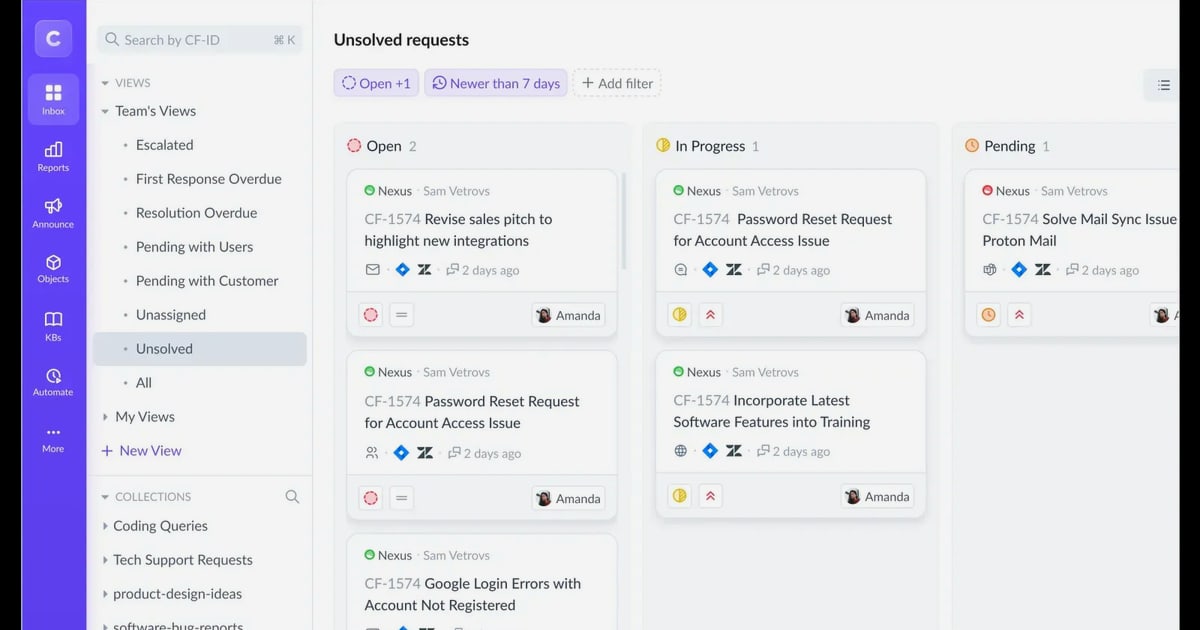
Once installed, ClearFeed behaves like a lightweight helpdesk layered on top of chat:
- Triage channels that consolidate requests from many channels into one queue.
- Request tracking with owners, priorities, and statuses managed from Slack.
- AI Agents that can post one automatic answer per new request, drawing on connected tools and knowledge.
- Ticketing sync with Zendesk, Freshdesk, Jira, ClickUp, and HubSpot.
- SLAs and reminders for upcoming breaches and escalations.
- Reporting on volume, response times, channels, and agent performance.
- Broadcasts to push product or policy updates across multiple channels at once.
A few limits are worth knowing before you commit. ClearFeed does not monitor private Teams channels. AI agent responses in Teams are supported when ticketing is disabled or when automatic ticketing uses ClearFeed or Zendesk. Custom ticket emojis are not supported in Teams, and removing the 🎫 reaction does not close a ticket. ClearFeed also states that AI-generated outputs may be inaccurate and that it does not use Slack data to train models.
ClearFeed pricing: what the free trial turns into
ClearFeed offers a 14-day free trial with no credit card required. Beyond that, pricing is quote-based rather than published as a simple per-seat number, and it typically scales with the number of agents, collections, and AI usage you enable. That model works well for small Slack-first teams but becomes harder to forecast as you add channels, AI resolution volume, and enterprise requirements like SSO and audit controls.
If predictable, outcome-based pricing matters to you, it is worth comparing ClearFeed against platforms that publish plan tiers. Our breakdown of Intercom vs Pylon vs Chatwoot walks through how AI, channels, and pricing differ across three common alternatives.
When ClearFeed is the right download — and when it isn't
ClearFeed fits well when:
- Your support and internal IT teams live in Slack all day.
- Most requests already arrive as chat messages, not formal tickets.
- You want AI auto-answers as a first pass, with humans closing the loop in Slack.
- You need lightweight ticketing without adopting a full helpdesk.
A broader platform fits better when:
- Customers contact you across live chat, email, phone, in-app messaging, and social — not just Slack and Teams.
- You need a self-service Help Center and a knowledge base that deflects tickets before they are created.
- You want AI resolution measured as an outcome, with analytics on containment and CSAT.
- You need enterprise controls, partner support, and a mature integration ecosystem.
This is where an AI-first customer service platform such as Intercom enters the picture. Intercom pairs a shared inbox with a natively integrated AI Agent, Fin, that resolves common questions across chat, email, and messaging, plus Copilot for agents and AI Insights for reporting. Teams that outgrow chat-native triage often keep Slack for internal coordination and move customer-facing conversations to a dedicated platform. If that transition is on your roadmap, how to scale customer service without losing quality covers the routing, self-service, and metric decisions involved.
For a closer look at how chat-first tools compare on AI depth and channel coverage, see our comparison of Intercom vs HelpCrunch.
Related reading
- Yuma AI Review 2026: Ecommerce Support Automation Tested - Evidence-based Yuma AI review: how its ecommerce AI agents resolve WISMO, returns, and refunds, plus real pricing, setup, limits, and who should buy.
- 24/7 Customer Service Automation: How It Works in 2026 - Learn how 24/7 customer service automation works, what to automate, how to keep a human handoff, and which metrics prove it pays off.
Sources and further reading
- MS Teams | ClearFeed Help Center - Set up Microsoft Teams as a channel in ClearFeed
FAQ
Is there a ClearFeed desktop app to download?
No. ClearFeed is installed as a Slack app, a Microsoft Teams app package, or used through its web dashboard. There is no standalone desktop client.
How long does ClearFeed setup take?
Slack installation is usually minutes. Teams takes longer because it requires Azure admin authorization, a manual app package upload, and per-channel installation for shared channels.
Does ClearFeed work without Slack?
ClearFeed is built around Slack as the agent workspace. Teams, email, web chat, Discord, and portal requests are routed into Slack triage channels rather than handled in their own native agent interface.
Can ClearFeed's AI agent fully resolve requests?
ClearFeed's AI Agents can post automatic answers to new requests and automate actions, but the product is positioned as AI-assisted support inside chat. Platforms built around AI resolution as the primary outcome, such as Intercom with Fin, are designed to close a larger share of conversations end to end.
Does ClearFeed offer a free trial?
Yes — a 14-day free trial with no credit card required, after which pricing is agreed with sales.
Conclusion
A ClearFeed download is really an installation decision: Slack app, Teams package, or both. If your support motion happens inside Slack and you want AI-assisted triage without a full helpdesk migration, the install is quick and the value is immediate. If your customers reach you through many channels and you need AI resolution, self-service, and analytics as core capabilities rather than add-ons, evaluate a dedicated AI-first customer service platform before you standardize on chat-native tooling. Start with the free trial, test it against your real request volume, and let resolution data — not channel loyalty — make the call.