How to Use Intercom with Zoom: 2 Integration Paths Explained
How to Use Intercom with Zoom: 2 Integration Paths Explained
Combining Intercom’s AI-first customer service platform with Zoom’s unified communications creates a powerful support stack. You can resolve complex issues face-to-face, escalate chats to video calls instantly, or use hands-free intercom for internal coordination—all without leaving your helpdesk. This guide covers the two main ways to use Intercom with Zoom, step-by-step setup, and practical examples for support teams.
Why Connect Intercom and Zoom?
First viewport screenshot of Home | Intercom Help.
Intercom handles asynchronous support across chat, email, and in-app messaging, with Fin AI Agent resolving up to 51% of questions automatically. But some conversations need a live voice or video touch. Zoom fills that gap. The integration solves three key problems:
- Complex troubleshooting: A screen share or video walkthrough resolves issues faster than back-and-forth text.
- High-touch sales and onboarding: Move a qualified lead from an Intercom chat to a Zoom meeting without switching tools.
- Internal coordination: Use Zoom Phone’s audio intercom to quickly reach colleagues when a customer needs an expert.
For teams evaluating their helpdesk options, see how Intercom compares to Drift on AI support versus sales chat in our Intercom vs Drift comparison.
The Two Integration Paths at a Glance
| Integration | What It Does | Best For |
|---|---|---|
| Zoom Virtual Agent + Intercom | Embeds a Zoom AI chatbot into Intercom’s messenger; hands off to live Intercom agents. | Automated first response, then human handoff within one widget. |
| Zoom Phone Audio Intercom | Enables hands-free, auto-answer calls between Zoom Phone users. | Internal team coordination; paging a specialist while on a customer call. |
Below, we break down each path in detail.
Path 1: Zoom Virtual Agent Intercom Integration

Zoom product interface.
Zoom Virtual Agent (ZVA) is an AI-powered bot builder. When connected to Intercom, it lets you deploy a Zoom bot that fields questions inside the Intercom messenger. If the bot can’t resolve the issue, it hands the conversation to a human Intercom agent—all within the same chat window.
What This Integration Enables
- A Zoom AI bot greets customers in the Intercom chat widget.
- The bot answers FAQs, collects details, and routes complex issues.
- Live handoff to an Intercom agent happens seamlessly, with full conversation context.
- Agents can continue the chat or escalate to a Zoom Meeting if needed.
How to Set Up Zoom Virtual Agent with Intercom
Prerequisites:
- An active Zoom Virtual Agent license.
- Admin access to both your Zoom web portal and Intercom workspace.
Steps:
- Sign in to the Zoom web portal.
- Navigate to AI Studio > Integrations.
- In the Marketplace section, search for Intercom and click Connect.
- A new tab opens for authentication. Log in to Intercom if prompted.
- Click Save. The integration appears with a Connected status.
- Go to AI Studio > Tool Templates > Marketplace tab.
- Expand Intercom for Zoom to view supported tools.
- Create a voice or chat agent and add the desired Intercom tools.
Once connected, you can add an Intercom support channel inside ZVA and link it to a bot. The bot then appears in your Intercom messenger as an automated first responder.
Data Security Note: Communications between Zoom and Intercom use TLS 1.2 encryption with ECDHE-ECDSA-AES128-GCM-SHA256 cipher suite and 128-bit keys. OAuth tokens are stored in an encrypted database.
Practical Example: SaaS Onboarding
A SaaS company uses Intercom’s Fin AI Agent to answer common setup questions. When a trial user asks about advanced reporting, Fin recognizes the need for a demo. The ZVA integration triggers a handoff to a human agent, who shares their screen via Zoom Meeting directly from the Intercom conversation. The user never leaves the chat interface until the video call starts.
Path 2: Zoom Phone Audio Intercom for Internal Support
First viewport screenshot of Understand customer experience at scale with the CX Score | Intercom Help.
Zoom Phone’s audio intercom feature is a separate but complementary tool. It allows hands-free, auto-answer calls between designated Zoom Phone users. While it doesn’t directly integrate with Intercom’s software, it enhances the support workflow when agents use both platforms.
How Audio Intercom Works
An audio intercom call is one-way initiation with automatic answering. When an authorized user calls a recipient’s extension, the recipient’s device answers immediately with a beep—no need to pick up. This is ideal for quick internal announcements or pulling in a specialist during a live customer interaction.
Enabling Audio Intercom for Your Team
Prerequisites:
- Both sender and receiver need a Zoom Workplace license with Zoom Phone, or a standalone Zoom Phone plan.
- Zoom desktop client version 5.9.3 or higher (or a supported desk phone).
- Admin must enable the Audio Intercom policy.
Admin Setup (Account Level):
- Sign in to the Zoom web portal as an admin.
- Go to Account Management > Account Settings > Zoom Phone tab.
- Under General, toggle Audio Intercom to enabled.
- Optionally lock the setting to prevent users from changing it.
Assigning Intercom Permissions:
- Navigate to Phone System Management > Users & Rooms > Users tab.
- Click a user’s display name, then the User Settings tab.
- In the Intercom section, click Set or Add.
- Select a User or Common Area Phone to assign, then click Save.
- Choose a default device to receive intercom calls (desktop app or desk phone).
Assigning the Intercom Line Key (Required):
- In the Zoom web portal, click Phone > Settings tab.
- Under Keys & Positions, click View or Edit > Manage Keys.
- Click Set Key on an available line key.
- Set Key Type to Intercom, assign a phone user, and optionally add an alias.
- Click Save.
Practical Example: Tier-2 Escalation
A support agent is on a Zoom Phone call with a customer troubleshooting a billing error. The agent realizes they need input from the finance team. Using audio intercom, they call the finance specialist’s extension. The specialist’s desk phone auto-answers with a beep. The agent quickly explains the issue, and the specialist joins a three-way call to resolve it—all without placing the customer on hold or transferring them through a queue.
When Audio Intercom Won’t Auto-Answer
| Receiver Status | Result |
|---|---|
| Busy on a call | Caller is prompted to confirm; if confirmed, they join the existing call (can merge into 3-way). |
| Monitoring a call | Receiver gets a notification with an option to answer; no auto-answer. |
Which Integration Should You Use?
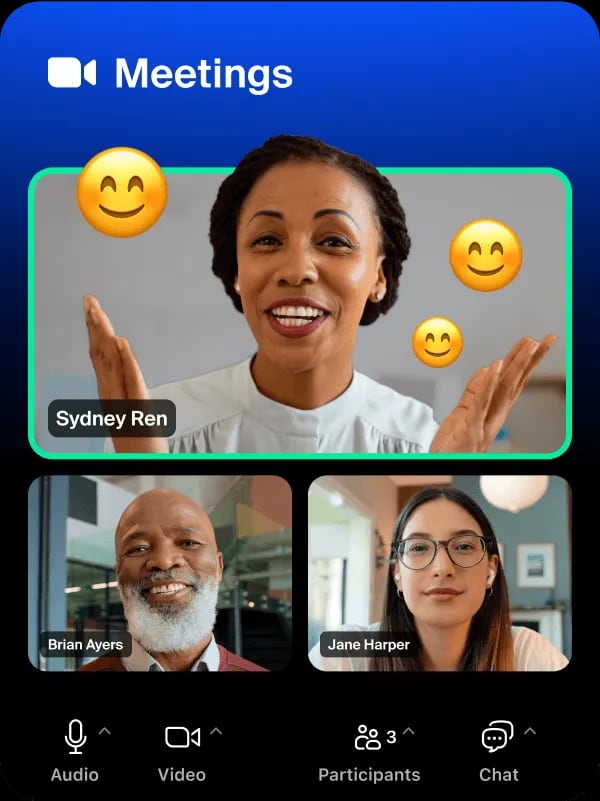
Meetings: Zoom Meetings app interface featuring various emoticons for enhanced communication and engagement..
Your choice depends on the workflow you want to enable:
- Choose Zoom Virtual Agent + Intercom if you want an AI bot inside Intercom that hands off to live agents, with the option to escalate to Zoom Meetings.
- Choose Zoom Phone Audio Intercom if your team already uses Zoom Phone and needs instant, hands-free internal communication during customer calls.
- Use both for a complete setup: ZVA handles customer-facing automation, while audio intercom speeds up internal collaboration.
For teams exploring broader workflow automation, our top 10 workflow acceleration platforms list covers tools that embed AI and human judgment into recurring processes.
Complementing the Integration with Intercom’s AI Features
Once Zoom is connected, Intercom’s native AI tools amplify the combined workflow:
- Fin AI Agent resolves routine questions before they reach a human, reducing Zoom call volume.
- Copilot AI Assistant gives agents instant summaries and suggested responses during Zoom-backed conversations.
- AI Insights analyzes support trends, helping you identify which issues most often require a video escalation.
Related reading
- Intercom vs Olark vs ClearFeed: Honest 2026 Comparison - Compare Intercom, Olark, and ClearFeed on AI agents, pricing, live chat, and Slack-native support. Find the best customer service platform for your team.
- HelpCrunch Review: Honest Look at AI, Pricing & Limits - In-depth HelpCrunch review covering AI chatbots, shared inbox, knowledge base, and real pricing signals. See where it excels and where it falls short.
Sources and further reading
- Setting up and using audio intercom - Admins or phone users can enable or disable audio intercom for phone users. Audio intercom allows hands-free
- Enabling Zoom Virtual Agent Intercom integration - Account owners and admins can integrate Zoom Virtual Agent with Intercom, allowing users to engage in
- Intercom Apps & Integrations - We’ll be right with you…
FAQ
Does Intercom have a native Zoom integration?
Intercom’s App Store includes a Zoom Webinars integration, but for live chat-to-video escalation, the Zoom Virtual Agent integration or a custom workflow using APIs is the primary method. Many teams also use Zoom Meetings links manually within Intercom conversations.
Can I start a Zoom Meeting directly from an Intercom chat?
Not through a one-click native button. However, agents can paste a Zoom Meeting link into the Intercom messenger, or you can build a custom app using Intercom’s API and Zoom’s Meeting SDK to automate link generation.
Is the Zoom Virtual Agent Intercom integration secure?
Yes. It uses TLS 1.2 encryption, and OAuth tokens are stored in an encrypted database. Both Zoom and Intercom are SOC 2 compliant platforms.
Do I need a Zoom Phone license for audio intercom?
Yes. Both the sender and receiver require a Zoom Workplace license with Phone included, or a standalone Zoom Phone calling plan.
Can audio intercom work on mobile?
Audio intercom is supported on the Zoom desktop client and provisioned desk phones. Mobile support is limited; check Zoom’s latest documentation for updates.
Next Steps
Start by identifying your primary use case—customer-facing automation or internal coordination—and follow the corresponding setup path above. For a deeper look at how Intercom stacks up against other helpdesks when paired with communication tools, read our Intercom vs Chatwoot vs ClearFeed comparison.
Connecting Intercom and Zoom bridges the gap between asynchronous text support and real-time voice and video. Whether you deploy an AI bot that hands off to live agents or enable instant internal paging, the combination helps your team resolve issues faster and deliver a more human support experience.