How to Use Intercom with Slack: AI Support Meets Team Chat
How to Use Intercom with Slack: AI Support Meets Team Chat
Customer conversations don't stay neatly inside a helpdesk. A billing question needs a finance check. A bug report needs engineering eyes. A VIP complaint needs a manager's judgment. Intercom gives you an AI-first helpdesk with Fin, a natively integrated AI Agent, while Slack keeps your team talking in real time. Connecting them closes the loop between customer-facing support and internal collaboration.
This article walks through how the two platforms work together, how to set up the integration, and which workflows actually save time. It also covers where the combination falls short and when you need a bridge tool instead.
Why connect Intercom and Slack?
The core problem is context switching. Without an integration, an agent handling a support ticket has to copy details into Slack, tag a colleague, wait for a reply, then paste the answer back into Intercom. Every handoff leaks time and information.
With the integration, Intercom pushes conversation events into Slack channels, and Slack replies can flow back into the Intercom inbox. The result is a single thread of truth: the customer conversation stays in Intercom, the internal discussion stays in Slack, and neither side loses the link between them.
A second benefit is speed on AI-resolved conversations. Fin handles routine questions automatically, but when a conversation needs a human or a specialist, the escalation should reach the right person fast. Slack is where those people already are.
How Intercom and Slack fit together
First viewport screenshot of slack.com.
Intercom is the system of record for customer conversations. It combines a shared omnichannel inbox, ticketing, and Fin, the AI Agent that resolves common questions and hands off complex ones. Slack is the AI work platform where teams manage projects, automate workflows, and coordinate responses.
The integration works in three directions:
- Intercom to Slack: new conversations, assignments, tags, and escalations post into Slack channels.
- Slack to Intercom: teammates can reply to a conversation from Slack, and the reply appears in the Intercom inbox.
- Shared context: customer details and conversation history are visible to the people collaborating in Slack, so nobody has to ask "which customer is this?"
That three-way flow is what separates a real integration from a simple webhook notification.
Setup: connecting Intercom to Slack
First viewport screenshot of slack.com.
Setup is mostly configuration, not code. The exact menus shift as both products evolve, so treat these as the steps to expect rather than a pixel-perfect click path.
1. Install the Slack app from Intercom
In Intercom, open the Apps and integrations directory and find Slack. Start the installation and authorize the connection between your Intercom workspace and your Slack workspace. You'll need admin rights on both sides, or a colleague who has them.
2. Choose which Slack channels receive which events
Don't dump everything into one channel. Map events to channels deliberately:
- A general support channel for new conversations.
- A billing channel for conversations tagged with billing.
- An escalations channel for conversations Fin couldn't resolve or that carry a high-priority tag.
This routing is the difference between a useful integration and a noisy one.
3. Configure notifications and reply behavior
Decide whether Slack messages should include the full conversation link, the customer's name and plan, or just a summary. Enable reply-from-Slack only for channels where people are expected to respond, such as a dedicated triage channel. For broadcast channels, keep it notification-only.
4. Test with a real conversation
Send a test message through your own help center or chat widget, then watch it appear in Slack. Reply from Slack and confirm the reply lands in the Intercom inbox. Test an escalation from Fin as well, so you know what a handoff looks like before a customer experiences one.
5. Document the workflow for your team
Write down which channel handles what, who owns replies, and when to move a discussion back into Intercom. A short internal page prevents the integration from becoming another unread channel.
Practical workflows that work

Slack | AI Work Platform & Productivity Tools product interface.
Workflow 1: Real-time escalation from Fin to a specialist
A customer asks about a refund outside your standard policy. Fin recognizes the question is outside its resolution scope and escalates. Intercom posts the conversation to a #support-escalations Slack channel with the customer's details and a link. A support lead claims it in the thread, checks the order history in Intercom, and replies. The customer sees a fast, informed response without ever knowing a handoff happened.
Workflow 2: Cross-team collaboration on a technical issue
A bug report arrives through chat. The agent tags the conversation "engineering" in Intercom. The tag triggers a Slack post in #eng-support with the reproduction steps and a link back. An engineer investigates, replies in the thread, and the agent relays the fix to the customer. The entire internal discussion stays attached to the customer record.
Workflow 3: VIP and high-value account alerts
Tag high-value accounts in Intercom so their conversations route to a priority Slack channel. The team sees the account name, plan, and recent conversation history at a glance, which shortens the time to a personalized response.
Workflow 4: Daily support digest
Use Slack's workflow automation or a scheduled Intercom report to post a daily summary: open conversations, Fin resolution rate, and conversations awaiting a first reply. This gives managers a lightweight operating rhythm without opening a dashboard.
Where the native integration stops
Native integrations cover notifications and replies well. They are less suited to complex, multi-step automation, such as creating a Slack channel per enterprise customer, syncing CRM fields, or triggering a sequence of actions across several apps.
For those cases, a workflow automation tool can bridge Intercom and Slack. A common pattern is a trigger in Intercom, such as a tag being added to a user, followed by an action in Slack that posts a formatted message to a chosen channel. The trade-off is an extra vendor, extra maintenance, and a slight delay compared with native events. Use native features for conversation-level collaboration and a bridge tool only for cross-app orchestration.
It's also worth checking how your chosen helpdesk compares on integration depth before you commit. Our Intercom vs Help Scout comparison covers how AI resolution and channel support differ, and the top help desk and ticketing software roundup puts integration options side by side.
Decision guide: is this combination right for you?
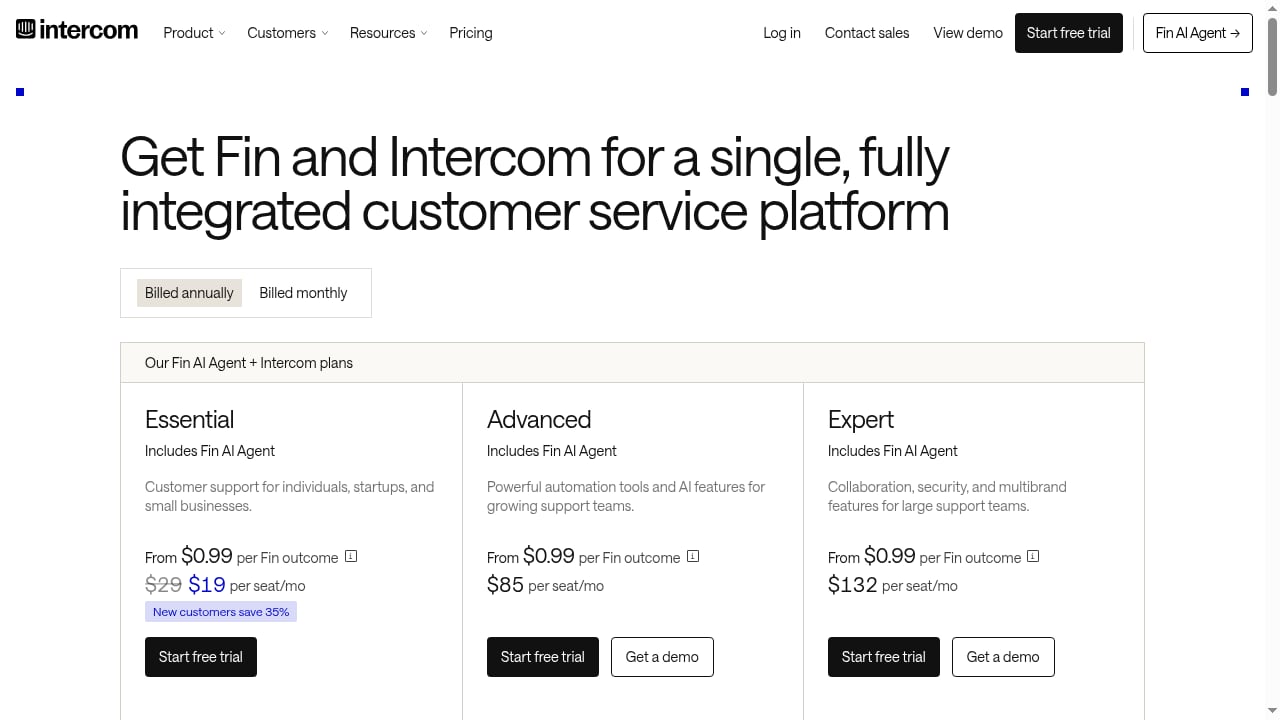
First viewport screenshot of Intercom Pricing | Plans for every team size.
| Your situation | Recommendation |
|---|---|
| Support team already lives in Slack | Connect Intercom to Slack natively; start with escalation and tag-based routing |
| High volume of routine questions | Lean on Fin for resolution and route only exceptions to Slack |
| Complex cross-app automation needed | Add a workflow automation tool alongside the native integration |
| Small team, one channel | Keep it simple: a single support channel with reply-from-Slack enabled |
| Compliance-sensitive industry | Review data-sharing settings before enabling customer details in Slack; see our compliance guide |
Common problems and how to avoid them
Notification overload. If every event posts to Slack, people mute the channel. Route by tag, priority, or team, and keep low-value events out.
Replies that never reach the customer. If reply-from-Slack is enabled in a channel where nobody owns responses, conversations stall. Assign an owner per channel.
Duplicate work. Two people answering the same conversation in different places creates confusion. Use Intercom assignment rules so one agent owns the conversation while Slack is for input.
Lost context after handoff. Always include the Intercom conversation link in Slack messages. Without it, the thread becomes a dead end.
Security gaps. Customer data in Slack is subject to your Slack retention and access policies. Limit which channels can display customer details and review who is in them.
Related reading
- CoSupport AI Review 2026: Pricing, Accuracy & Real Fit - Evidence-based CoSupport AI review: how its autonomous agent and drafting assistant perform, pricing models, setup, limitations, and who should buy in 2026.
FAQ
Does Intercom have a native Slack integration?
Yes. Intercom offers a Slack app that connects conversations to Slack channels, supports notifications, and allows replies from Slack back into the Intercom inbox.
Can Fin AI Agent escalate conversations to Slack?
Fin handles routine questions and escalates when a conversation needs a human. With the Slack integration configured, those escalations can post into a designated channel so the right person picks them up quickly.
Do I need Zapier to connect Intercom and Slack?
No. The native integration covers notifications and replies. A tool like Zapier is useful only for multi-step automation across several apps, such as triggering a Slack message when a specific tag is added to a user.
Can I reply to customers from Slack?
Yes, when reply-from-Slack is enabled for a channel. The reply is delivered through Intercom, so the customer sees it in their original channel.
Is customer data safe when shared with Slack?
That depends on your configuration. Limit customer details to private channels, review Slack access policies, and check your data processing agreements. For a broader framework, see our compliance guide for AI customer service.
How does this compare with other AI support platforms?
Integration depth varies widely. If you're evaluating alternatives, our Intercom vs Chatbase comparison and Intercom vs Jitbit vs Tidio comparison break down AI resolution, helpdesk features, and pricing.
Conclusion
Intercom and Slack solve different halves of the same problem. Intercom, with Fin and its shared inbox, handles the customer conversation and automates the routine work. Slack gives your team a fast, familiar place to collaborate when a conversation needs human judgment. Connected well, the pair reduces handoff friction, speeds up escalations, and keeps customer context attached to every internal discussion.
Start small: connect the integration, route escalations to one channel, and test the reply flow with a real conversation. Once that works, expand to tag-based routing and daily digests. The goal isn't more notifications; it's fewer places where a customer question can get stuck.
For a broader view of how AI agents and helpdesks compare, explore our AI support platform comparisons and help desk software rankings.
Sources: