Shared Inbox: What It Is, Tools, and Best Practices

Shared Inbox: What It Is, Tools, and Best Practices
A shared inbox is a single email address—like support@yourcompany.com or sales@yourcompany.com—that multiple team members can access, read, and respond from at the same time. Instead of forwarding messages back and forth or sharing one password, everyone logs in with their own credentials and works from a common queue.
For small teams, a shared inbox is often the first step away from personal Gmail chaos. For larger support organizations, it becomes the foundation of a broader customer service operation—one that can include live chat, in-app messaging, and AI-powered automation.
This guide covers what shared inboxes actually are, how they work, the tools worth considering in 2026, and the practices that keep team email from spiraling into duplicate replies and missed follow-ups.
What Is a Shared Inbox?
Shared Inbox: What It Is, Tools, and Best Practices - What Is a Shared Inbox?.
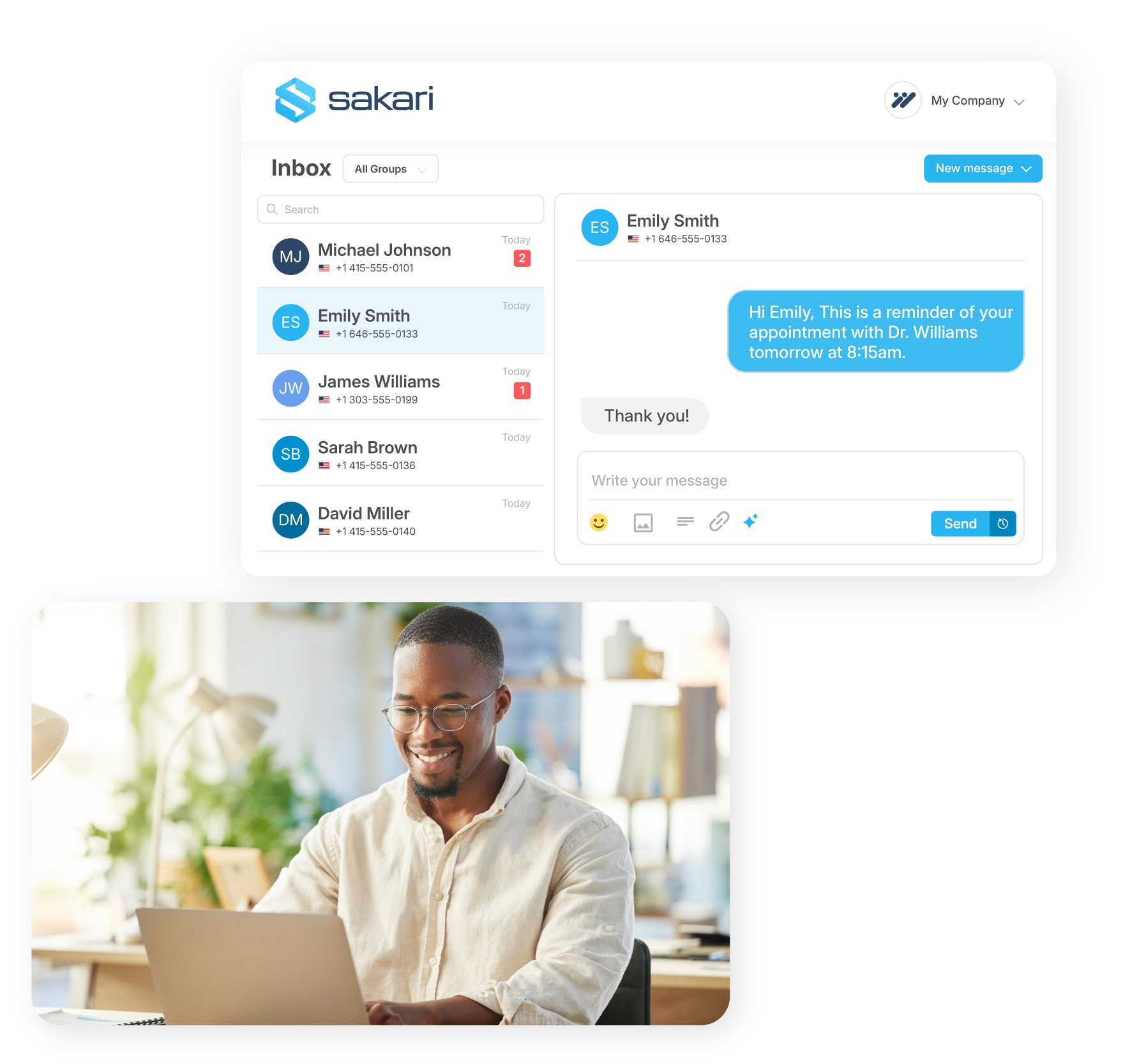
A shared inbox is a centralized email workspace where multiple people can send, read, assign, and manage messages from a common address. Each person keeps an individual login, but everyone sees the same queue of conversations.
For example, if John and Lucy both work on help@acme.com, they can both open the inbox, see incoming messages, and reply—without stepping on each other's toes. The customer only ever sees the shared address, not individual employee emails.
Shared Inbox vs. Shared Mailbox vs. Distribution List
These terms get used interchangeably, but they mean different things:
- Shared mailbox is the Microsoft 365 / Outlook term for a free, admin-managed mailbox that multiple users can access. It covers the basics—reading and sending email—but lacks assignment, internal notes, or workflow features.
- Distribution list simply forwards copies of messages to multiple personal inboxes. There is no shared queue, no visibility into who replied, and no way to prevent duplicate responses.
- Shared inbox software is a purpose-built tool that adds collaboration features on top of shared email: assignments, internal comments, collision detection, automation, and often additional channels like chat or SMS.
If your team is one or two people handling low volume, a basic shared mailbox or even a distribution list might work. Once three or more people are involved, the limitations become obvious quickly.
How Does a Shared Inbox Work?

Shared Inbox: What It Is, Tools, and Best Practices - How Does a Shared Inbox Work?.
The core mechanics are similar across most tools: connect an email address, add team members, and start working the queue together. What separates a good shared inbox from a basic one is what happens after that.
Key capabilities to look for:
- Collision detection: See who is viewing or replying to a message in real time, so two people don't draft responses to the same customer.
- Assignments: Route a conversation to a specific person, making ownership explicit.
- Internal notes and mentions: Discuss a message with coworkers inside the conversation thread, without forwarding chains or Slack debates.
- Automation rules: Route, label, or auto-respond based on sender, subject, or content.
- Shared templates: Let the team answer common questions consistently in one click.
- Multi-channel support: Bring email, live chat, social messages, and SMS into the same queue.
Why Teams Move Beyond Basic Email

Shared Inbox: What It Is, Tools, and Best Practices - Why Teams Move Beyond Basic Email.
Personal email clients like Gmail or Outlook are built for individuals. They work beautifully when one person owns an inbox. The moment multiple people share responsibility, the cracks appear:
- Two people reply to the same customer with different answers.
- Someone archives a message while a teammate is still working on it.
- Nobody knows whether the support request from Tuesday was ever resolved.
- Handoffs require awkward "oh wait, that was in my personal inbox" conversations.
Shared inbox tools exist to solve exactly these problems. Customer service teams, sales teams, operations groups, accounting firms, and agencies all benefit from moving off shared-password Gmail and into a proper shared workspace.
Benefits of a Shared Inbox
Shared Inbox: What It Is, Tools, and Best Practices - Benefits of a Shared Inbox.
A well-run shared inbox delivers measurable improvements:
- One clear point of contact: Customers always know where to reach you, even as your team grows behind the scenes.
- Clear ownership: Everyone sees who is handling what. Duplicate replies become rare.
- Real security: No more password sharing. Each person logs in with their own credentials, and access is managed through admin settings.
- Better collaboration: Discuss replies in context, without forwarding chains or external chat threads.
- Faster response times: Multiple people can work the queue in parallel without conflicts.
- Cleaner handoffs: Going on vacation? Reassign conversations in a few clicks instead of exporting your inbox.
Shared Inbox Tools Compared
The shared inbox market in 2026 spans free utilities, lightweight collaboration tools, and full customer service platforms. Here is how the major categories break down.
Free and Built-In Options
Google Collaborative Inbox is a feature of Google Groups that lets team members manage conversations together. You can assign conversations, mark them resolved, and see what has been handled. It is more functional than basic email forwarding but significantly more limited than purpose-built tools—there is no internal chat threading, and it is tied to Google Groups infrastructure.
Outlook Shared Mailbox is free with Microsoft 365 and lets multiple users access a common email folder with admin-controlled permissions. Microsoft officially recommends against using it with more than 25 concurrent users. There is no concept of assignments, internal discussion, or collaborative workflow—it is just shared access. For small Outlook-based teams with low volume, it is the cheapest possible starting point.
Dedicated Shared Inbox Software
Tools like Missive, Front, Helpwise, and Hiver are built specifically for team email collaboration. They add internal chat, live co-drafting, assignments, and automation on top of shared inboxes. Pricing typically starts around $14–25 per user per month, with higher tiers unlocking multi-channel support and advanced analytics.
These tools are a strong fit for teams that live primarily in email but need better coordination than a basic shared mailbox provides.
Full Customer Service Platforms
For support teams that need more than email—live chat, in-app messaging, self-service help centers, and AI-powered automation—a customer service platform with a built-in shared inbox is often the better path.
Intercom, for example, includes a shared inbox as part of its AI-first customer service platform. Teams can manage conversations across live chat, email, in-app messaging, and phone from one workspace, with an AI Agent (Fin) resolving routine questions automatically and a Copilot assistant helping human agents draft faster, more accurate replies. This moves the shared inbox from a simple email queue into a complete support operation.
For a deeper look at how Intercom compares with dedicated email tools, see this Help Scout review and the Intercom vs Freshdesk comparison.
How to Choose a Shared Inbox Tool
The right choice depends on your volume, channels, and team size.
Start with these questions
- How many people will work the inbox? One or two people can survive with a free shared mailbox. Three or more need assignments and collision detection.
- What channels do you support? Email-only teams have more options. If you also handle live chat, social, or SMS, look for a tool that brings everything into one queue.
- How much automation do you need? Basic routing rules are table stakes. AI-powered drafting, auto-resolution, and content-based routing are differentiators.
- What is your budget reality? Free tools work until they don't. Dedicated shared inbox software starts around $14–25 per user per month. Full platforms with AI capabilities cost more but can reduce headcount pressure.
- Will this scale? A tool that works for five people may buckle at fifty. Consider how the platform handles large teams, permissions, and reporting.
Decision framework
| Scenario | Recommended approach |
|---|---|
| 1–2 people, low email volume | Free shared mailbox (Outlook or Google) |
| 3–10 people, email-only, need collaboration | Dedicated shared inbox software |
| Growing support team, multiple channels | Customer service platform with shared inbox |
| Enterprise with complex workflows | Full platform with AI, analytics, and integrations |
Shared Inbox Best Practices
Even the best tool cannot fix bad habits. These practices keep team email healthy.
1. Define clear ownership
Every conversation should have an owner. Most tools let you assign messages explicitly. Make it a rule: if you touch it, you own it until it is resolved or reassigned.
2. Use internal notes, not external replies
When you need to ask a teammate about a message, use internal notes or mentions—never reply to the customer with an internal question. This keeps the customer thread clean and the discussion in context.
3. Set response time expectations
Agree on service-level targets for first response and resolution. Shared inbox tools often include reporting that shows how the team is performing against those targets.
4. Build a template library
For questions that come up repeatedly—shipping status, password resets, billing inquiries—create shared templates. This keeps answers consistent and speeds up response times dramatically.
5. Automate the repetitive stuff
Use rules to route messages based on sender, subject, or content. If your platform supports AI, let it handle the most common questions entirely. This frees humans for conversations that actually need judgment and empathy.
6. Review the queue regularly
Schedule a weekly review of unresolved or aging conversations. This catches anything that slipped through the cracks and reveals patterns worth automating.
Shared Inbox and AI: The 2026 Shift
The biggest change in shared inbox management over the past two years is AI. What used to be a purely human queue is now a hybrid workspace where AI agents resolve routine questions and human agents handle complex or sensitive conversations.
This shift changes what a shared inbox means. Instead of just coordinating humans, modern shared inboxes coordinate humans and AI together. The inbox becomes a place where:
- AI resolves common questions instantly, without human involvement
- AI drafts suggested replies for human agents to review and send
- AI routes conversations to the right person or team based on intent and sentiment
- Humans step in for escalations, edge cases, and high-stakes conversations
For teams evaluating shared inbox tools in 2026, AI capability is no longer a nice-to-have. It is the difference between scaling support linearly with headcount and scaling it with technology. For a practical look at how AI capabilities affect pricing, see this guide on AI chatbot pricing with live chat included.
Related reading
- Intercom vs Dashly vs HelpCrunch: 2026 Comparison - Compare Intercom, Dashly, and HelpCrunch on AI capabilities, pricing models, channels, and ideal use cases. Find the right customer communication platform.
Sources and further reading
- Open and use a shared mailbox in Outlook - Learn how to open a shared mailbox in Outlook. Shared mailboxes let a group of users view and send email, and share a calender, and open a contact list from a common mailbox.
- 10 best shared inbox software for teams in 2026 · Missive Blog - The 10 best shared inbox software for teams in 2026, with current pricing: Missive, Front, Help Scout, Hiver, and more, plus how to pick and run one well.
- Shared Mailbox – OIT Knowledge Base - Skip to main content
Frequently Asked Questions
What is the difference between a shared inbox and a shared mailbox?
A shared mailbox is a basic email feature—usually in Microsoft 365 or Google Workspace—that lets multiple users access one email address. A shared inbox is a broader concept that includes purpose-built software with collaboration features like assignments, internal notes, collision detection, and automation. All shared mailboxes are shared inboxes, but not all shared inboxes are shared mailboxes.
Can I use Gmail as a shared inbox?
Not natively. Gmail accounts are designed for individual users. Google Collaborative Inbox (part of Google Groups) provides basic shared inbox functionality for Workspace users, but it lacks the collaboration features of dedicated tools. Many teams start with a shared Gmail account and password, but this creates security and accountability problems as the team grows.
How much does shared inbox software cost?
Free options exist through Google Workspace and Microsoft 365. Dedicated shared inbox tools typically start at $14–25 per user per month billed annually. Full customer service platforms with AI capabilities cost more, often with tiered pricing based on features and volume. Monthly billing usually runs 20–40% higher than annual.
What is the best shared inbox for a small team?
For a small team of 3–10 people handling email, a dedicated shared inbox tool like Missive, Helpwise, or Hiver offers the best balance of collaboration features and price. If your team also needs live chat, in-app messaging, or AI automation, a platform like Intercom may be a better long-term fit.
When should a team move from a shared mailbox to shared inbox software?
The trigger is usually one of these: duplicate replies to customers, messages falling through the cracks, no clear ownership of conversations, or the need for internal discussion without forwarding chains. If any of these sound familiar, it is time to upgrade.
Can a shared inbox handle more than email?
Yes. Many shared inbox tools now support live chat, SMS, WhatsApp, social media messages, and in-app messaging in the same queue. This is especially valuable for support teams that want one workspace for all customer conversations rather than separate tools per channel.
Conclusion
A shared inbox is more than a technical convenience—it is the operational backbone of team-based customer communication. Whether you start with a free Outlook shared mailbox or invest in a full AI-powered customer service platform, the goal is the same: make it easy for multiple people to work one queue without confusion, duplication, or dropped messages.
The right tool depends on your team size, channels, and growth trajectory. Small teams can start free and simple. Growing teams need assignments, internal notes, and automation. Support organizations that want to scale without scaling headcount should look for platforms where a shared inbox is just one part of a broader, AI-first customer service operation.
For more comparisons of shared inbox and customer service platforms, see Intercom vs Talkdesk vs Freshdesk and Intercom vs Gorgias.