Shared Team Inbox: A Complete Guide for Support Teams
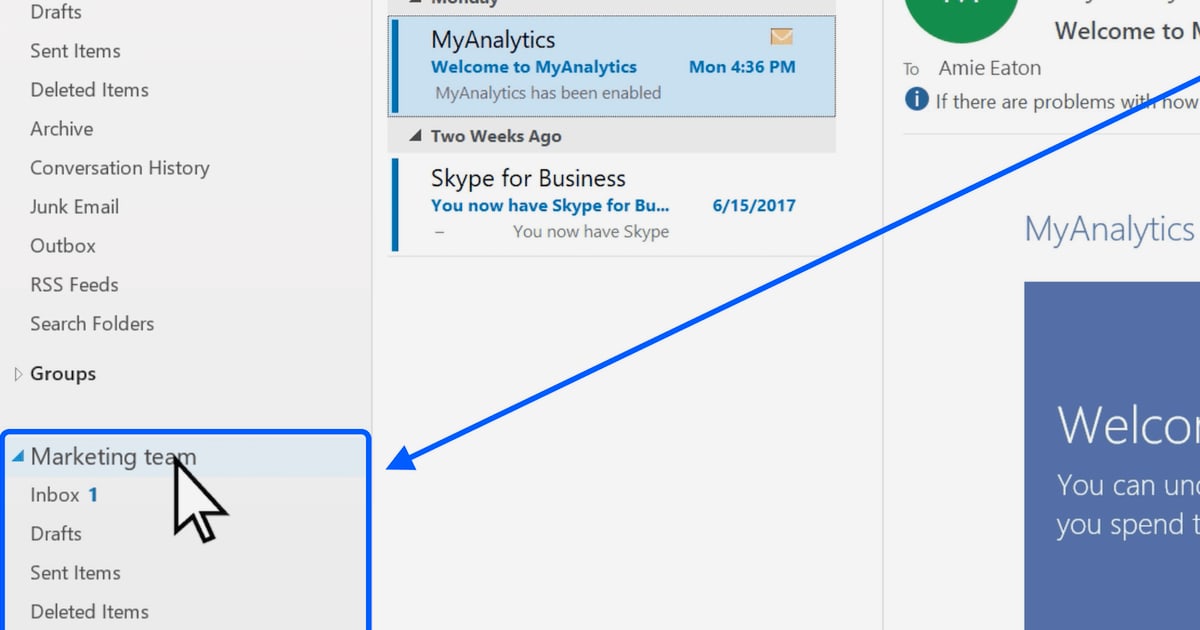
Shared Team Inbox: A Complete Guide for Support Teams
A shared team inbox lets multiple agents view, assign, and reply to customer messages from a single place. Instead of forwarding emails or asking who handled what, everyone works from the same queue with full visibility. But not all shared inboxes are created equal—especially as AI becomes a core part of customer service.
This guide explains how shared team inboxes work, what to look for, and how an AI-first platform like Intercom combines a shared helpdesk with automation and an AI Agent to help teams respond faster and more consistently.
What is a shared team inbox?
A shared team inbox is a centralized workspace where a group of people manage incoming conversations. Unlike a personal email inbox, a shared inbox is designed for collaboration: messages can be assigned to specific agents, tagged, prioritized, and discussed internally. Everyone can see the status of each conversation, reducing duplicate replies and missed messages.
Shared inboxes are common in customer support, sales, and operations teams that handle high volumes of email, chat, or social messages. They replace the "forward and CC" workflow with a transparent queue that keeps the whole team aligned.
How shared team inboxes work
Most shared inbox tools follow a similar model:
- Centralized intake – Messages from email, chat, social, or other channels arrive in one inbox.
- Assignment and routing – Conversations are assigned to the right person or team based on rules, workload, or round-robin distribution.
- Internal collaboration – Agents leave private notes, mention teammates, and share context without the customer seeing it.
- Status tracking – Conversations move through states like open, pending, or resolved, so nothing falls through the cracks.
- Reporting – Managers track response times, resolution rates, and team workload.
This structure brings order to what would otherwise be a chaotic stream of messages.
Why shared team inboxes matter for customer support
First viewport screenshot of www.intercom.com.
Customers expect fast, consistent answers across every channel. A shared inbox helps support teams deliver that by:
- Eliminating duplicate work – Everyone sees who is handling what.
- Improving response times – Conversations are routed to the right agent immediately.
- Increasing accountability – Assignment and status make ownership clear.
- Preserving context – Internal notes and conversation history stay with the customer record.
- Enabling teamwork – Agents can collaborate on complex issues without leaving the inbox.
For growing teams, a shared inbox is often the first step toward a more structured helpdesk.
Shared team inbox vs. email: key differences
A regular email inbox is built for one person. A shared team inbox is built for a group. Here's how they compare:
| Capability | Personal email inbox | Shared team inbox |
|---|---|---|
| Visibility | Only the account owner sees messages | Entire team can view and act on conversations |
| Assignment | Manual forwarding or CC | Built-in assignment and routing rules |
| Collaboration | Email threads and forwards | Internal notes, mentions, and shared drafts |
| Status tracking | Read/unread only | Open, pending, resolved, and custom statuses |
| Reporting | Limited | Team and individual performance metrics |
| Channel support | Primarily email | Email, chat, social, and more |
If your team currently uses a shared email account (like support@yourcompany.com), you've likely experienced the pain of lost messages and unclear ownership. A dedicated shared inbox solves those problems.
Key features to look for in a shared team inbox
First viewport screenshot of www.intercom.com.
When evaluating shared inbox software, prioritize features that match your team's workflow and growth plans:
- Omnichannel support – Can it handle email, live chat, social media, and messaging apps in one place?
- Assignment and routing – Does it support round-robin assignment, load balancing, and rules-based routing?
- Internal collaboration – Can agents leave private notes and mention teammates?
- Automation – Are there workflows to auto-tag, prioritize, or respond to common questions?
- AI capabilities – Does it include an AI agent or assistant to deflect repetitive tickets and help agents work faster?
- Reporting and analytics – Can managers track response times, resolution rates, and team performance?
- Integrations – Does it connect with your CRM, knowledge base, and other tools?
Modern platforms increasingly add AI to the shared inbox. For example, Intercom combines a shared helpdesk with Fin, an AI Agent that can resolve common questions automatically, and Copilot, an AI assistant that helps agents draft replies and find information.
How AI is changing the shared team inbox
First viewport screenshot of www.intercom.com.
AI is shifting shared inboxes from passive queues to active problem-solvers. Instead of every conversation requiring a human, AI can handle routine questions and route complex issues to the right agent with full context.
This changes the economics of support. Teams can handle higher volumes without proportional headcount growth, and agents spend more time on high-value interactions. Intercom's approach is to treat AI and human agents as one system: Fin resolves what it can, and the helpdesk handles the rest with automation and collaboration tools.
If you're exploring AI agent platforms for support, our comparison of the top 10 AI agent platforms for customer support products can help you evaluate options.
Practical examples of shared team inbox workflows
Here are a few ways teams use shared inboxes effectively:
Example 1: E-commerce order inquiries
A customer emails about a delayed order. The shared inbox auto-assigns the message to the order support team. An agent sees the order details via integration, replies with tracking information, and tags the conversation as "shipping delay." A manager later reviews the tag to identify a pattern and updates the help center article.
Example 2: SaaS technical support
A user reports a bug via live chat. The conversation is routed to tier 2 support. The agent leaves an internal note with reproduction steps and mentions an engineer. Once resolved, the agent updates the conversation status and links to a knowledge base article for future reference.
Example 3: High-volume event support
During a product launch, inquiries spike. The shared inbox uses automation to send instant answers to common questions, while AI handles FAQs. Human agents focus on complex issues. This kind of setup is covered in our guide to scaling event support with AI.
Shared team inbox best practices
To get the most from a shared inbox, establish clear processes:
- Define ownership – Use assignment rules so every conversation has an owner.
- Use tags and views – Organize conversations by topic, priority, or customer segment.
- Write internal notes – Document context for teammates, especially on complex issues.
- Set SLAs – Track first response and resolution times to maintain service levels.
- Review metrics regularly – Use reporting to identify bottlenecks and training needs.
- Keep knowledge base updated – Link conversations to help center articles to speed up replies and improve self-service.
Choosing the right shared team inbox platform
First viewport screenshot of www.intercom.com.
The best platform depends on your team size, channels, and appetite for AI. If you're comparing helpdesk options, our Intercom vs Zendesk AI Agents comparison breaks down differences in AI resolution, pricing, and reporting.
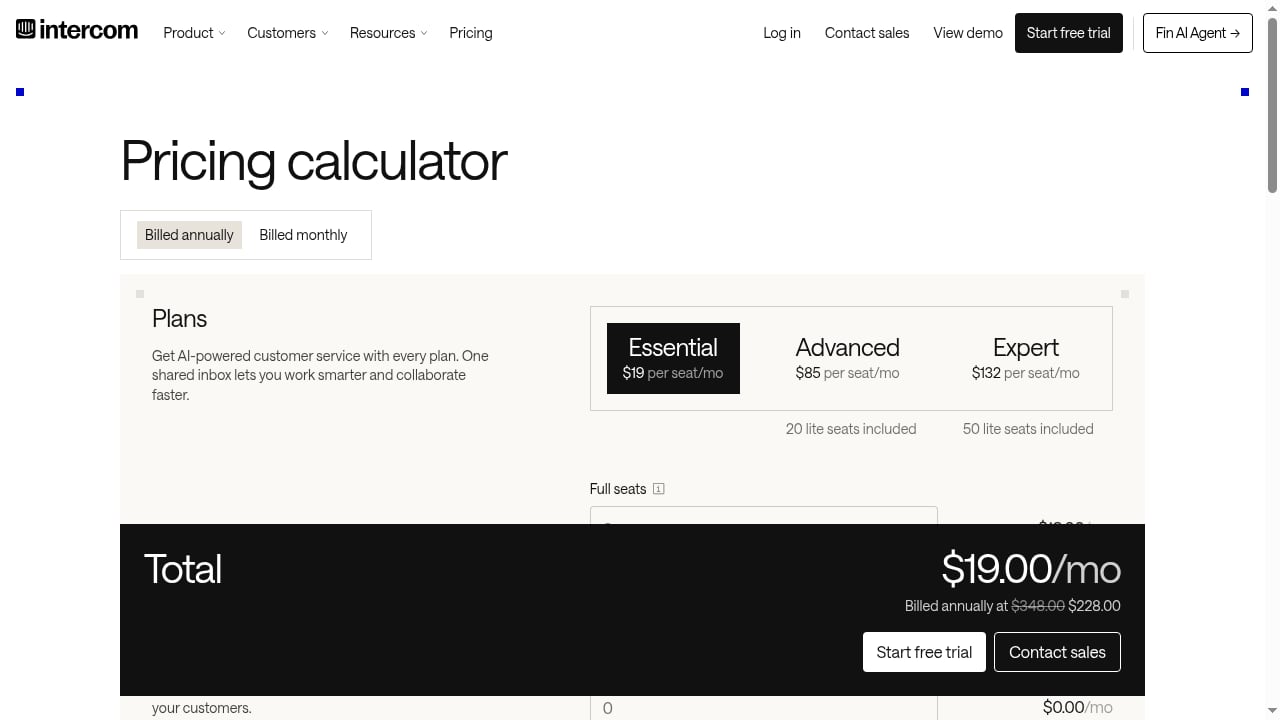
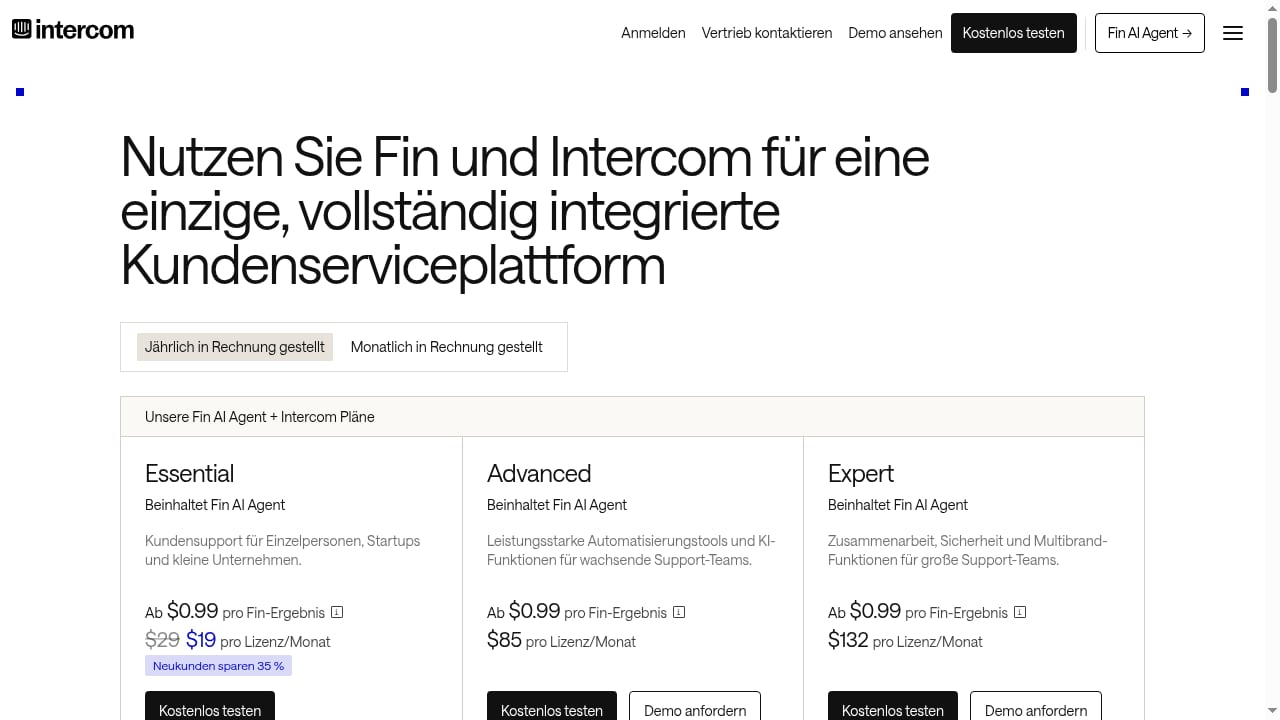
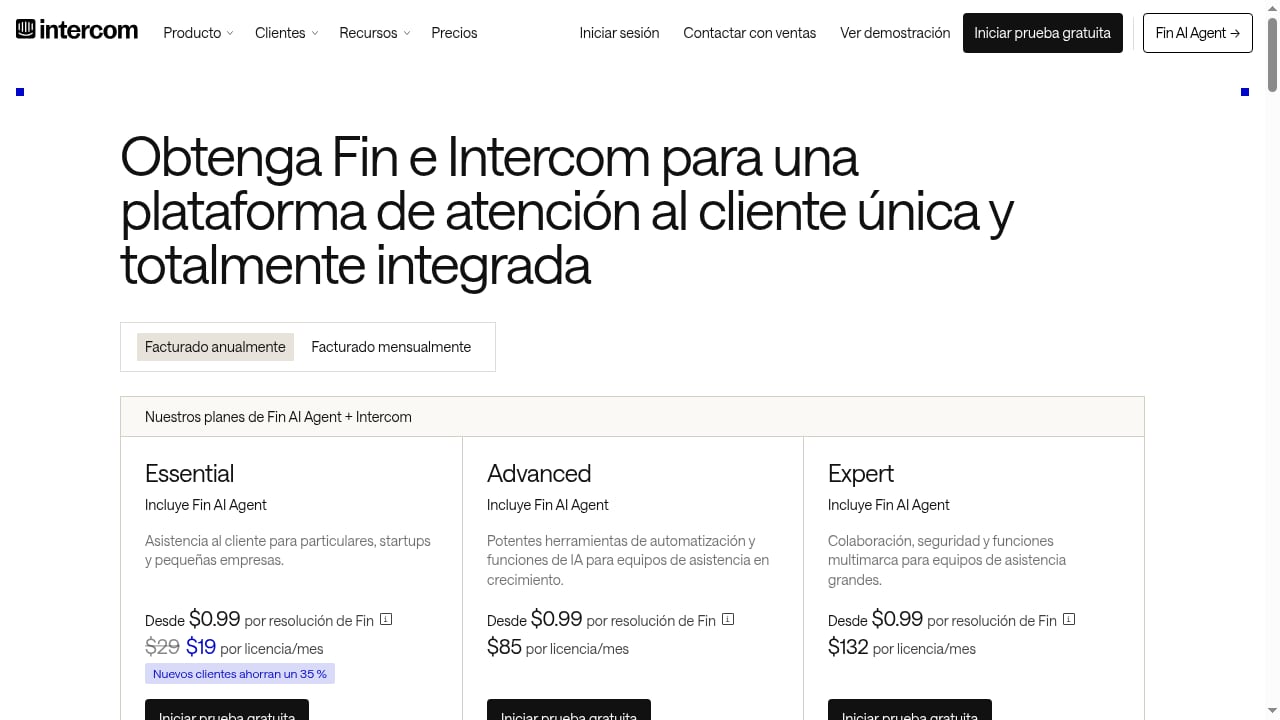
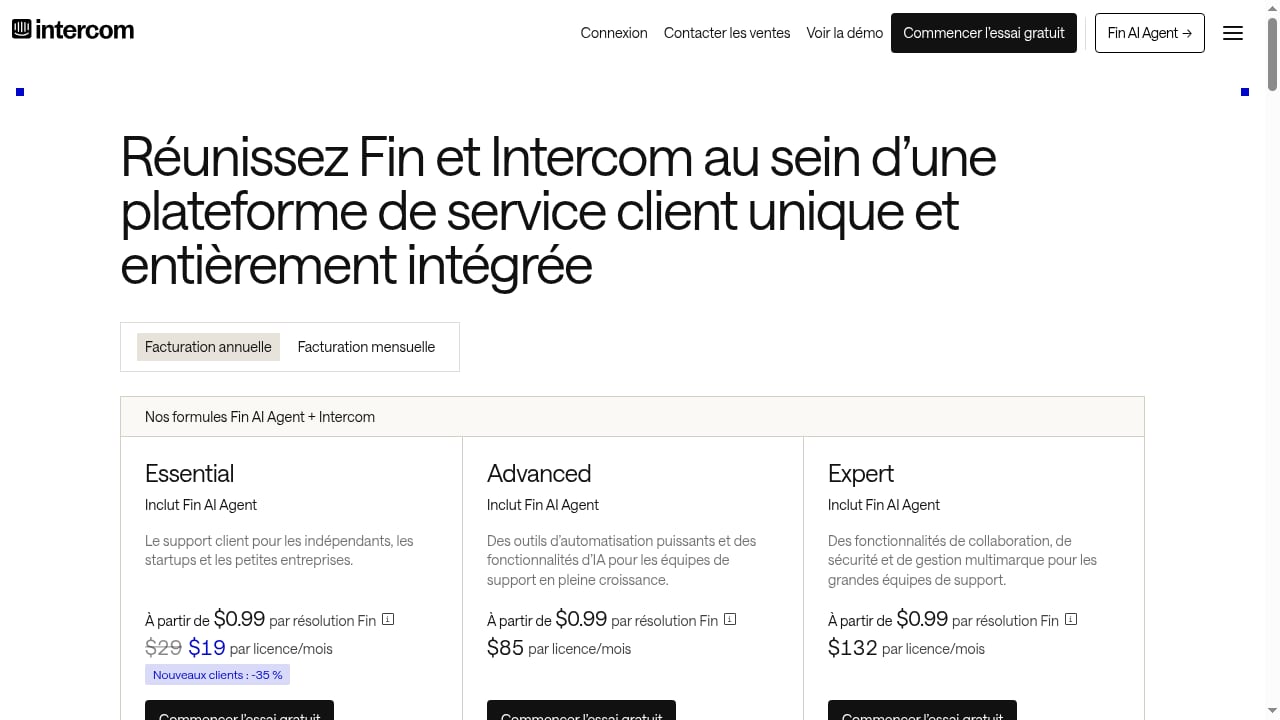
For teams that want a shared inbox with native AI, Intercom offers an omnichannel inbox, AI-powered ticketing, workflow automation, and Fin AI Agent. Pricing starts at $19 per seat per month for Essential, with Fin priced per outcome at $0.99. A 14-day cardless free trial is available.
Related reading
- How to Use Intercom with HelpDocs: Setup, Workflows & Tips - Learn how to connect Intercom with HelpDocs to power self-service, deflect tickets, and give agents instant access to your knowledge base. Step-by-step guide.
Frequently asked questions
What is a shared team inbox?
A shared team inbox is a collaborative workspace where multiple team members can view, assign, and respond to incoming messages from a single account or platform. It's commonly used by customer support teams to manage email, chat, and social inquiries.
How does a shared team inbox differ from a shared email mailbox?
A shared email mailbox (like a shared Outlook mailbox) allows multiple people to access the same email account, but it lacks built-in assignment, internal notes, and reporting. A dedicated shared team inbox includes those collaboration and management features, often across multiple channels.
Can a shared team inbox handle multiple channels?
Yes, many modern shared inbox platforms support email, live chat, social media, and messaging apps in one unified interface. This is often called an omnichannel inbox.
What is the role of AI in a shared team inbox?
AI can automatically resolve common questions, suggest replies to agents, route conversations, and surface relevant knowledge. This reduces manual work and helps teams respond faster.
How much does a shared team inbox cost?
Pricing varies widely. Some tools charge per user per month, while others charge per inbox or per feature tier. Intercom's helpdesk seats range from $19 to $132 per seat per month depending on plan, with Fin AI Agent priced per outcome at $0.99.
Conclusion
A shared team inbox is essential for support teams that want visibility, accountability, and faster responses. As AI becomes more integrated, the shared inbox evolves into a complete system for human and AI customer service. Whether you're setting up your first shared inbox or upgrading to an AI-first platform, focus on the features that align with your team's workflow and growth.
For a deeper look at how Intercom compares with other helpdesk tools, see our Intercom vs ProProfs Help Desk vs BlackBeltHelp comparison.