How to Use Intercom with Zoom: AI + Human Support
How to Use Intercom with Zoom: A Complete AI + Human Support Workflow
Customer support teams often face a split reality: AI handles routine questions in one tool, while live conversations happen in another. Intercom and Zoom can close that gap. Intercom provides an AI-first helpdesk with Fin, a natively integrated AI Agent, while Zoom offers video meetings, chat, phone, and contact center capabilities. Together, they let you automate resolution and escalate to a human conversation without losing context.
This guide explains how the two platforms complement each other, walks through setup, and shows practical workflows you can copy.
Why combine Intercom and Zoom for customer service?
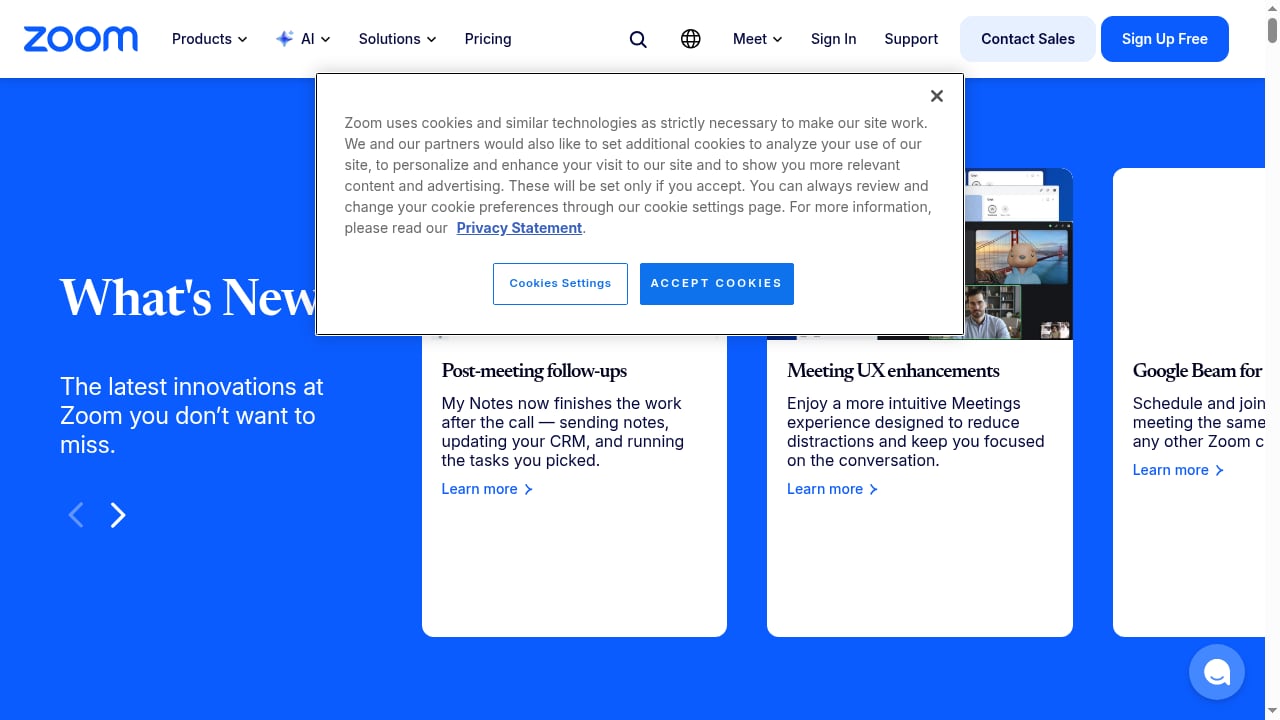
First viewport screenshot of www.zoom.com.
Intercom is built around a shared inbox and a shared customer record. Fin learns from every conversation your human team handles, and the same knowledge powers self-service, Copilot, and the help center. Zoom adds real-time communication: video calls, VoIP, webinars, and contact center routing.
The combination solves three common problems:
- Context switching. Agents copy notes between a helpdesk and a video tool. With an integration, conversation history stays in Intercom while the live call happens in Zoom.
- Escalation friction. A customer stuck in a chat loop needs a face or voice. You can move from Fin to a human to a Zoom meeting without asking the customer to repeat themselves.
- Measurement gaps. AI resolution rates and live call outcomes live in separate reports. Connecting them gives a clearer view of the full journey.
For a deeper look at how autonomous agents fit into support operations, see Autonomous AI Agents in Customer Service: A Practical Guide.
How the workflow works end to end
First viewport screenshot of What's New at Zoom.
A typical combined workflow has five stages:
- Customer starts in Intercom. Fin answers from your knowledge base, asks clarifying questions, and takes actions through APIs or MCP where configured.
- Fin detects a need for a human. The conversation is routed to your team in the shared inbox with a summary and full context.
- Agent decides on the channel. For complex troubleshooting, the agent sends a Zoom meeting link or starts a Zoom Phone call from within the Intercom conversation.
- Live conversation happens in Zoom. The agent can share screens, walk through steps, and resolve the issue in real time.
- Outcome returns to Intercom. The agent logs the resolution, and that conversation becomes training material for Fin and reporting data for managers.
This loop is the core value: every human interaction improves the next AI interaction.
Setup steps
First viewport screenshot of www.zoom.com.
1. Prepare your Intercom workspace
Before connecting Zoom, make sure your Intercom foundation is solid:
- Centralize knowledge. Add help center articles, internal notes, and product documentation to the Knowledge Hub. Fin, Copilot, and your help center all draw from this content.
- Configure Fin. Set tone, escalation rules, and the topics Fin should not handle. Test with real questions from your inbox.
- Set up teams and inboxes. Route billing, technical, and onboarding conversations to the right groups.
If you are still evaluating platforms, the Intercom vs Talkdesk comparison covers AI resolution and fit for support teams.
2. Connect Zoom
Intercom's app marketplace includes a Zoom integration. The exact steps can change, but the pattern is consistent:
- In Intercom, open Settings > Integrations (or the App Store) and search for Zoom.
- Authorize the connection with a Zoom account that has permission to create meetings.
- Choose default meeting settings: waiting room, recording, and passcode.
- Map Intercom teams to Zoom users or groups so meetings are assigned correctly.
- Test with an internal conversation before going live.
For phone-based support, connect Zoom Phone or Zoom Contact Center separately, since those are distinct products from Zoom Meetings.
3. Configure escalation rules
Decide when a conversation should move to Zoom:
- High-value accounts with complex onboarding
- Technical issues that need screen sharing
- Conversations where Fin has low confidence or the customer asks for a person
- Post-purchase demos or training
Set these rules in Intercom workflows so agents do not have to make the call manually every time.
4. Train your team
Agents need to know three things: when to offer a Zoom call, how to send a meeting link inside Intercom, and how to log the outcome afterward. A short playbook with example scripts reduces inconsistency.
5. Measure and iterate
Track Fin's resolution rate, escalation reasons, Zoom call duration, and post-call CSAT. Review weekly. If Fin escalates too often on a topic, the fix is usually missing or unclear knowledge content, not a new workflow.
Practical examples
Example 1: SaaS onboarding
A new customer asks how to import data. Fin answers with a help center article and a short video. The customer replies that the import failed. Fin collects the error message and escalates. The agent reviews the summary, sends a Zoom meeting link, and shares their screen to fix the mapping. After the call, the agent adds a note to the help center article, which improves Fin's next answer.
Example 2: Ecommerce order issue
A customer reports a damaged item. Fin verifies the order through an integration, explains the return policy, and offers a replacement. If the customer requests a live conversation, the agent can use Zoom Phone to call and confirm details. The conversation record stays in Intercom.
Example 3: Contact center overflow
During a launch, chat volume spikes. Fin handles common questions about pricing and availability. Complex cases route to Zoom Contact Center agents who can handle voice and video. Intercom remains the system of record for the customer conversation.
Where Intercom leads and where Zoom adds value
First viewport screenshot of www.zoom.com.
| Capability | Intercom | Zoom |
|---|---|---|
| AI agent for written support | Fin, natively integrated | Virtual Agent in contact center |
| Shared inbox and ticketing | Core strength | Limited |
| Video meetings | Via integration | Core strength |
| VoIP phone | Available | Zoom Phone |
| Contact center routing | Available | Zoom Contact Center |
| Knowledge management | Centralized Knowledge Hub | Separate |
Use Intercom as the customer service system of record. Use Zoom when the conversation needs voice, video, or large-scale contact center routing. For teams comparing broader automation options, see Top 10 AI Customer Service Automation Software 2026.
Common problems the combination solves
- Repetitive questions drain agent time. Fin resolves common queries, and Zoom calls are reserved for issues that need a human.
- Customers repeat themselves. The Intercom record travels with the escalation, so the Zoom call starts with context.
- AI and human teams work in silos. Shared knowledge and shared inbox mean improvements flow both ways.
- Reporting is fragmented. Conversation data stays in one place even when the live channel is Zoom.
Related reading
- Intercom vs RingCentral vs BlackBeltHelp: 2026 Comparison - Compare Intercom, RingCentral, and BlackBeltHelp on AI customer service, voice, higher-ed helpdesk fit, integrations, and pricing to pick the right platform.
- HelpCrunch Review 2026: Live Chat, Automation & Value - Evidence-based HelpCrunch review covering live chat, chatbots, knowledge base, email marketing, pricing signals, setup, and ideal users for 2026.
FAQ
Does Intercom have a native Zoom integration?
Intercom offers a Zoom integration through its app marketplace. Setup typically involves authorizing the connection and configuring meeting defaults. Check Intercom's current documentation for exact steps, as integrations evolve.
Can Fin hand off to a human on a Zoom call?
Yes. Fin can escalate to your team in the Intercom inbox, and an agent can then start a Zoom meeting or call. The handoff includes the conversation history and any information Fin collected.
Is Zoom Contact Center a replacement for Intercom?
Not usually. Zoom Contact Center is strong for voice and routing, while Intercom is built for AI-first written support, ticketing, and knowledge management. Most teams use both for different jobs.
How do I measure success?
Track Fin's resolution rate, the percentage of conversations escalated to Zoom, average handling time, and post-interaction CSAT. Compare before and after the integration to isolate impact.
What should I set up first?
Start with knowledge content and Fin configuration. A Zoom connection is only useful if the AI and human teams have accurate information to work from.
Conclusion
Intercom and Zoom solve different parts of the same problem. Intercom gives you an AI-first helpdesk where Fin and your team share knowledge, context, and a single inbox. Zoom gives you the live communication layer for meetings, phone calls, and contact center routing. Connected well, they reduce repetition, speed up escalations, and turn every human conversation into better AI performance.
Start with your knowledge base, configure Fin, connect Zoom for the conversations that truly need a human, and measure the handoff. That sequence delivers value faster than connecting tools first and designing workflows later.
For related automation options, read How to Use Intercom with Zapier: AI Customer Service Workflow.